

AudiCable Audio Recorder
How to Set Any YouTube Music as a Ringtone on Android & iPhone

By
Updated on: August 19, 2026
Category: YouTube Music Tips
Many people have felt this: a song on YouTube Music seems perfect as a ringtone. A memorable part, like a calm melody or an uplifting section, might catch your attention. Using actual songs instead of standard alerts changes how your phone sounds for calls. Your personal taste is heard each time the phone rings.
Unfortunately, YouTube Music doesn’t make things easy. However, you can still complete a YouTube Music to ringtone process by converting songs into compatible audio files for Android and iPhone. This guide shows you how to convert, transfer, and set YouTube Music tracks as custom ringtones step by step.
Part 1. Why Can't You Set YouTube Music as Ringtone Directly
YouTube Music songs cannot be set as ringtones directly due to platform restrictions. Audio is protected by a streaming system, meaning it cannot be exported or saved as local files. Tracks are also not available in formats like MP3 or WAV and can only be played inside the app.
The core reason is that YouTube Music operates as a streaming-based service rather than a traditional music download platform. Even if users download songs for offline listening with YouTube Music Premium, those files remain encrypted and tied to the app itself. Android and iPhone cannot recognize these protected cache files as standard ringtone audio because the operating system only supports locally stored audio formats such as MP3, M4A, or M4R for ringtone customization.
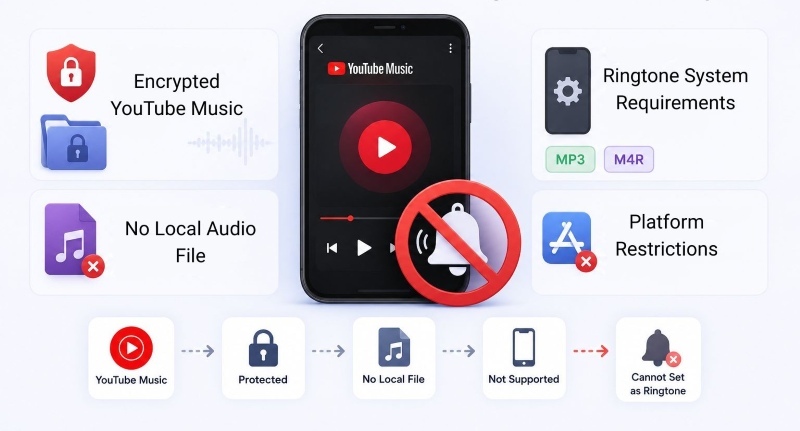
Since Android and iPhone require local audio files, YouTube Music content is incompatible with system ringtones by default. As a result, conversion is required before setting any song as a ringtone.
Part 2. Best YouTube Music to MP3 Converter for Ringtones in 2026
If you want to turn songs from YouTube Music into ringtones, the first step is simple — you need to convert them into real audio files. Since there’s no direct option for ringtones, a third-party tool becomes essential.
One reliable option is AudiCable Audio Recorder, which is built for saving YouTube Music tracks as usable local files. Compared to basic downloaders, it does more than just save music. It converts tracks into common formats like MP3, AAC, WAV, and FLAC, making it easy to complete a full YouTube Music to MP3 for ringtone process without losing audio quality. That means your files are ready to use as ringtones, alarms, or notification tones. It supports both single songs and playlists, so you can easily create multiple ringtone choices without repeating the process. With extra conversion tools included, adjusting files for different ringtone use is quick and simple.
Best AudiCable YouTube Music Recorder & Ringtone Maker( Mac / Win )
- Download music from YouTube Music, Spotify, Apple Music, Amazon Music, Tidal, Deezer, SoundCloud, and other music sources.
- Save music to MP3, AAC, WAV, FLAC, AIFF, ALAC at 10x speed.
- Keep the original audio quality to ensure clear ringtone playback.
- Batch download songs with full ID3 tags.
- Includes useful tools like format conversion and ID3 editing for ringtone customization.
- Support YouTube Free and Premium accounts.
📂 How to Convert YouTube Music to MP3 Ringtones?
To use songs from YouTube Music as custom ringtones, the first step is turning them into usable local audio files. With the help of AudiCable Audio Recorder, you can quickly save your favorite tracks in ringtone - compatible formats like MP3 or AAC and use them on both Android and iPhone. The setup process is actually pretty straightforward. Just follow the steps below.
Step 1 Choose YouTube Music as the Source
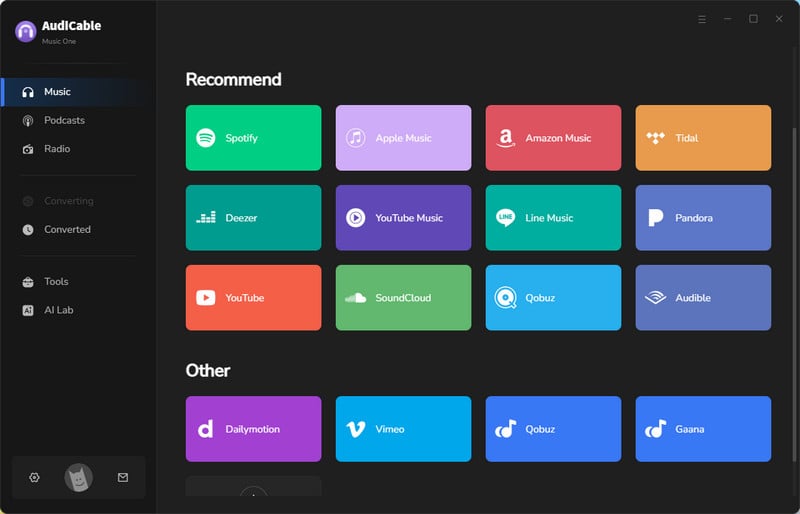
After launching AudiCable Audio Recorder, simply choose "YouTube Music" from the home screen to enter the music conversion module.
Step 2 Set MP3 as the Output Format
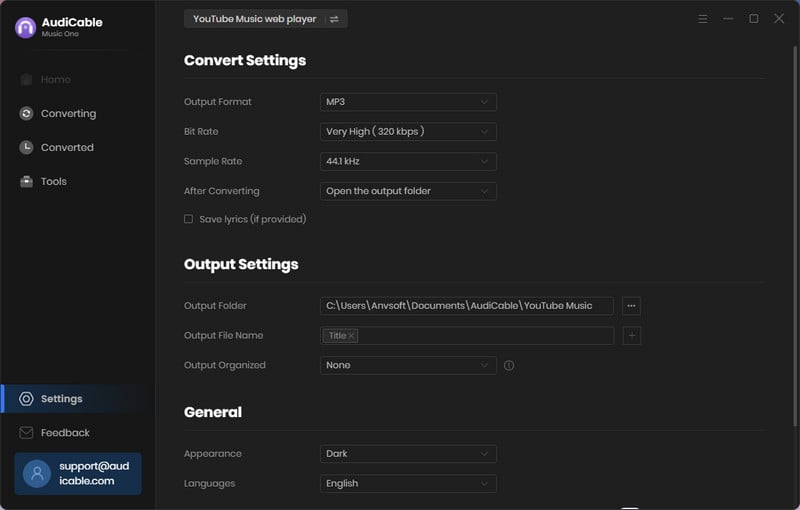
Open the Settings window and choose "MP3" as the output format. You can also customize audio settings like bitrate or output quality based on your needs.
Step 3 Add YouTube Music Songs
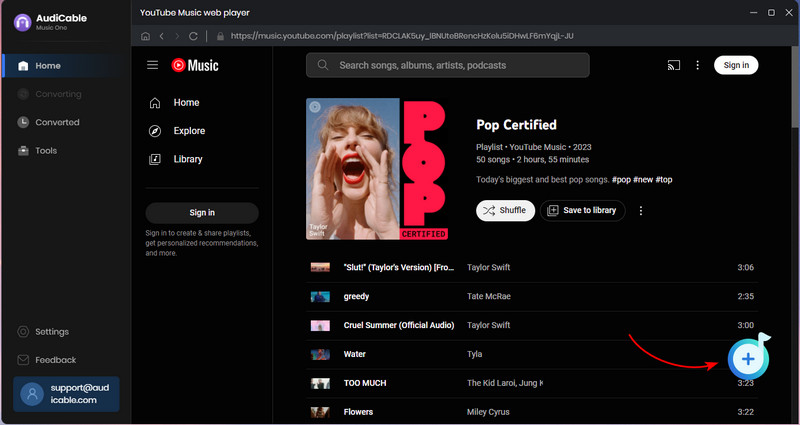
Browse a playlist, album, or artist in the built-in YouTube Music web player. Then click the "Add" button in the lower-right corner and select the tracks you want to use as ringtones.
Step 4 Convert YouTube Music to MP3
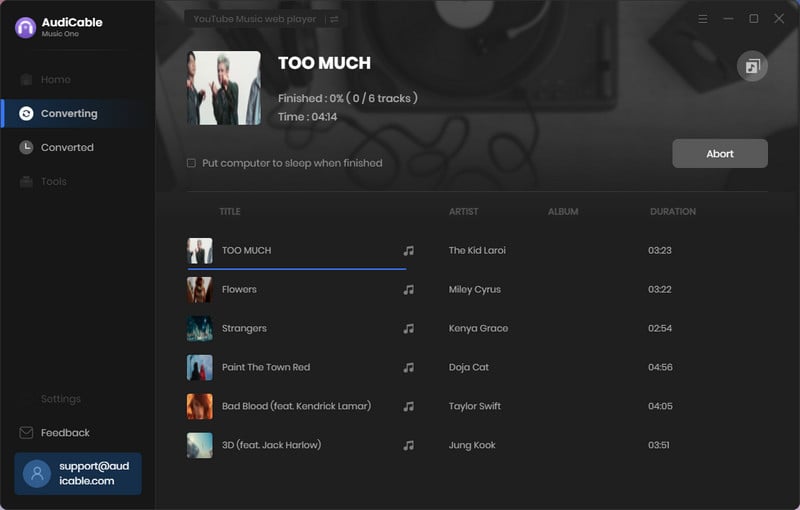
Click the "Convert" button to start downloading and converting the selected songs to your computer. In our test, converting a 3-minute YouTube Music track to MP3 took about 18 seconds on a Windows laptop. If needed, you can stop it anytime by clicking "Abort".
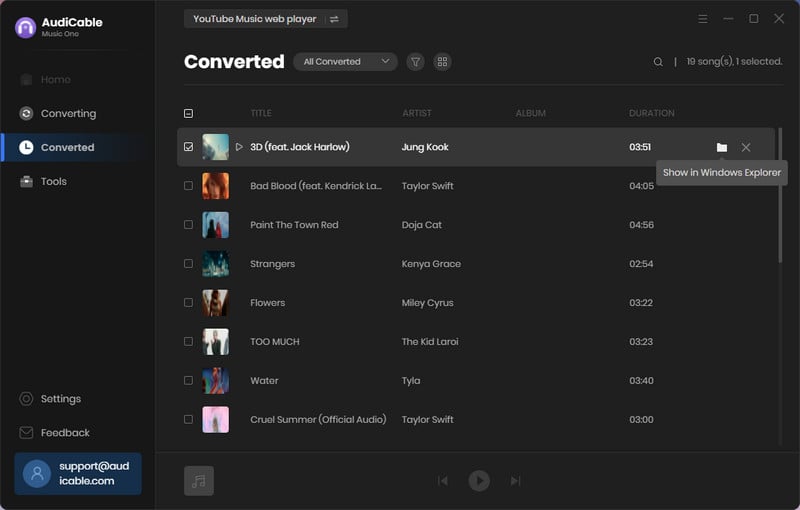
Step 5 Find the Converted Music Files
Once the conversion is complete, open the "History" section on the left panel. Click the Folder icon next to any track to quickly access the downloaded audio files on your computer.
Step 6 Customize YouTube MP3 Ringtone for FREE
To refine your ringtone audio, go to Tools > Audio Editor and import the converted song. You can easily trim unwanted sections, copy and paste clips, adjust volume levels, and apply simple audio effects to create a cleaner and more personalized ringtone.
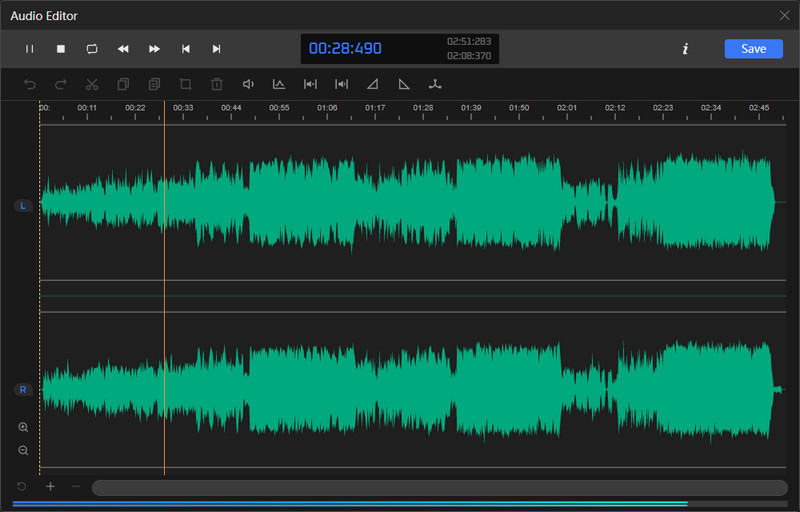
Note: For Android devices, MP3 files usually work perfectly as ringtones. For iPhone, you may need to further convert the downloaded audio into M4R format before importing it as a ringtone.
Part 3. How to Set YouTube Music Ringtone on Android
Android gives users much more flexibility when it comes to custom ringtones. Once your YouTube Music song has been converted into a local MP3 or WAV file, the process becomes very simple. Here’s how to do it.
Step 1: Connect your Android phone to your computer with a USB cable, then copy the converted YouTube Music songs to the “Ringtones” folder in your phone’s internal storage.
Step 2: Open Settings > Sound & vibration > Ringtone on your Android device, then select the converted YouTube Music track as your ringtone.
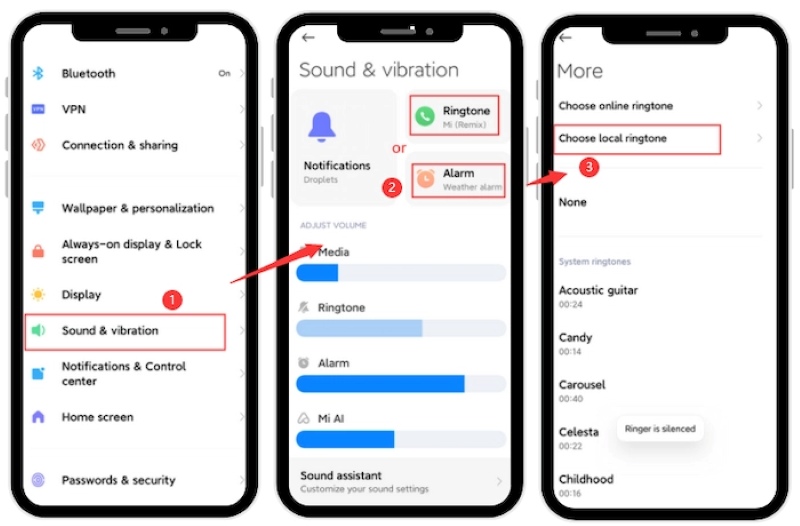
Note: The exact path may vary slightly depending on your Android brand, such as Samsung, Xiaomi, or OnePlus. Once selected, you can successfully set YouTube song as ringtone on your Android phone.
Part 4. How to Set YouTube Music as a Ringtone on iPhone
Setting a custom ringtone on iPhone takes a few extra steps compared to Android, but once it's imported correctly, it behaves just like any normal iPhone ringtone.
Method 1 – Using GarageBand (Free Method)
Step 1: Open GarageBand on your iPhone, tap the + icon, then choose Audio Recorder from the Tracks tab.
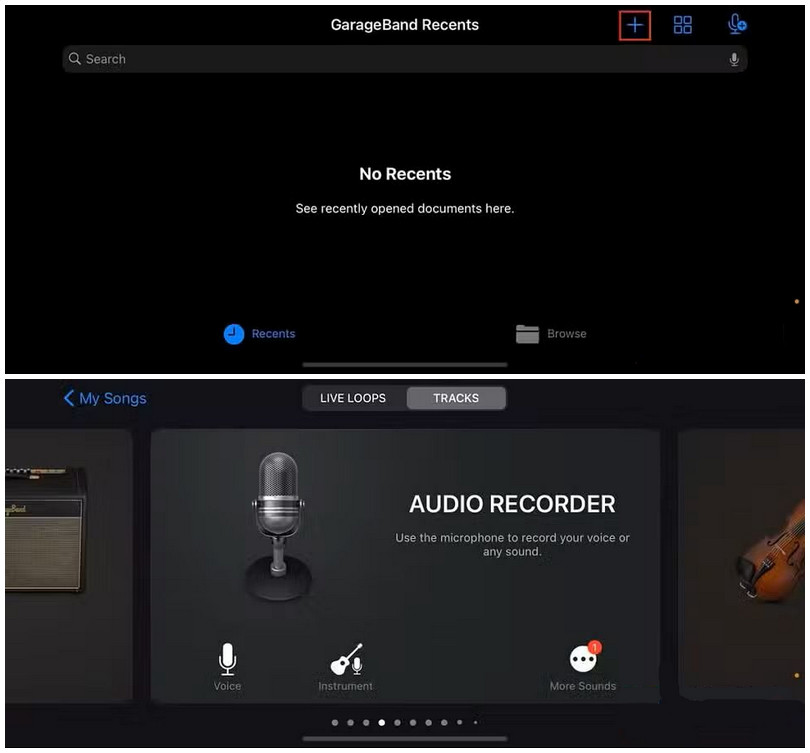
Step 2: Tap the Tracks View icon, then click the Loop icon in the upper-right corner. Open the Files tab and import the audio file you want to use as your ringtone.
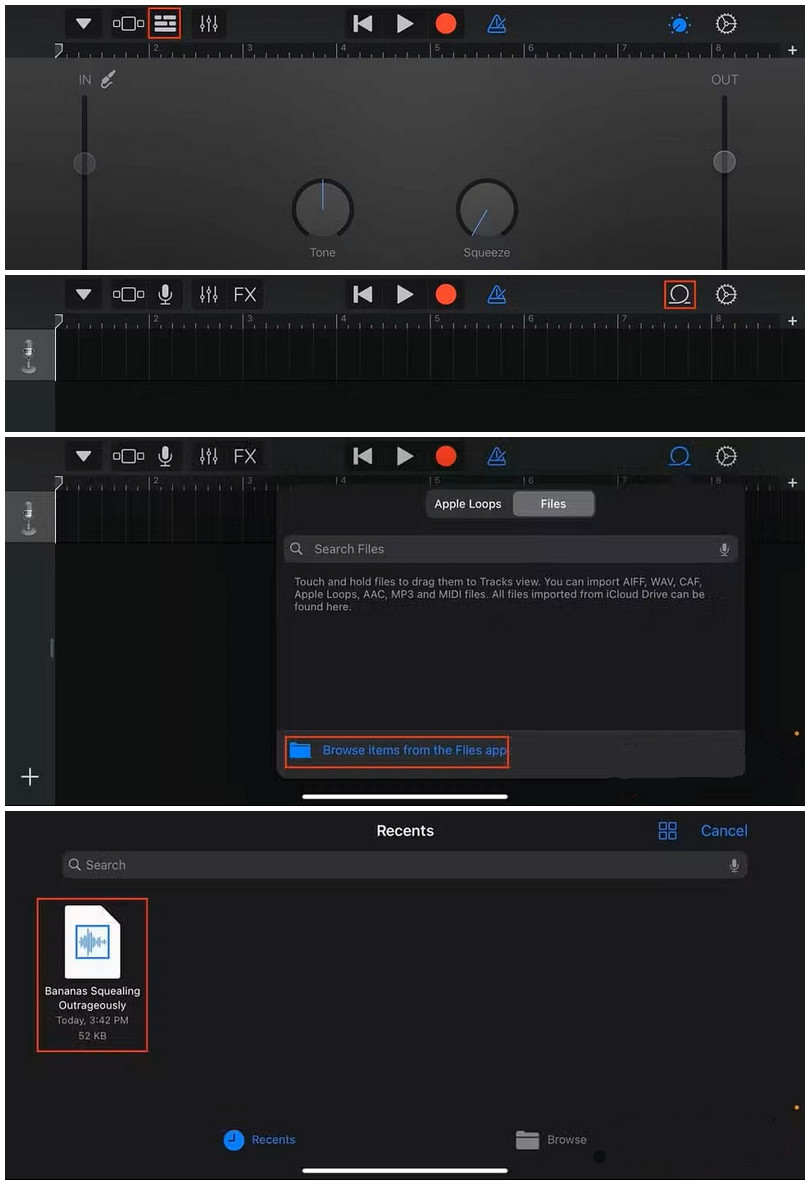
Step 3: Drag the imported track onto the timeline and trim the audio to your preferred ringtone length (within 30–40 seconds).
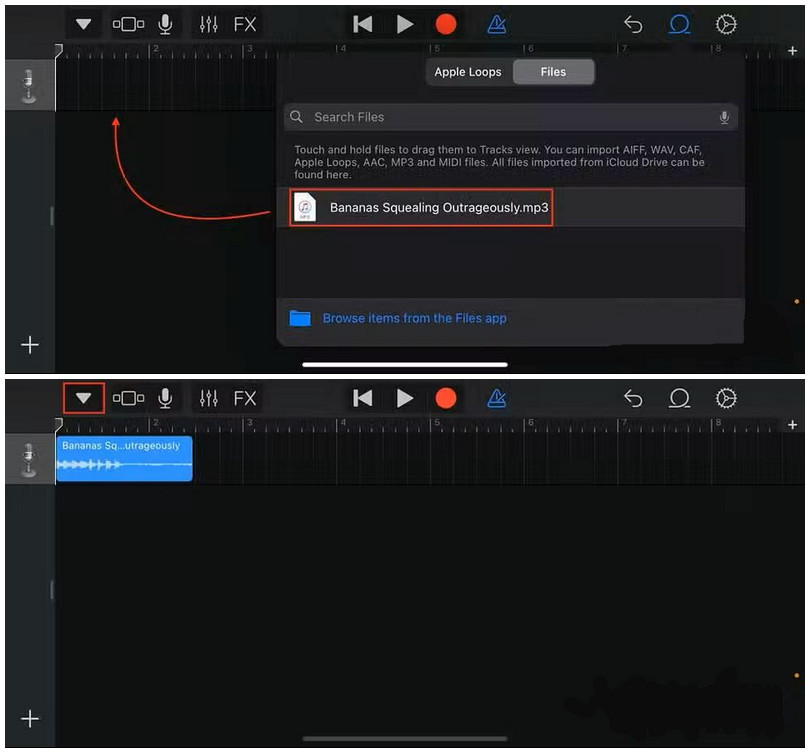
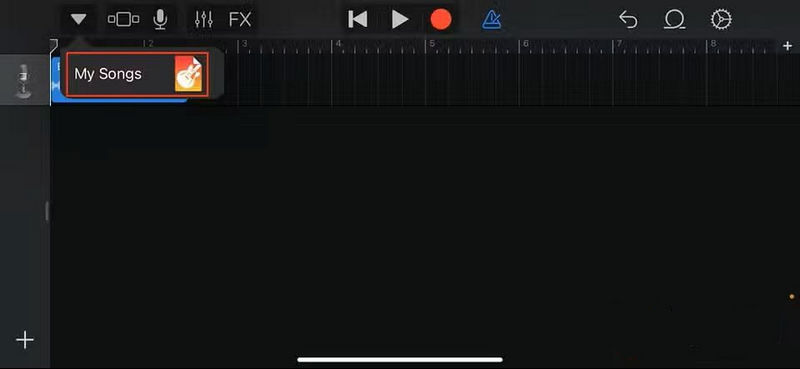
Step 4: Tap the dropdown arrow in the upper-left corner and select My Songs to save the project.
Step 5: Press and hold the saved project, then tap Share > Ringtone. GarageBand will automatically export the file as an M4R ringtone for iPhone use.
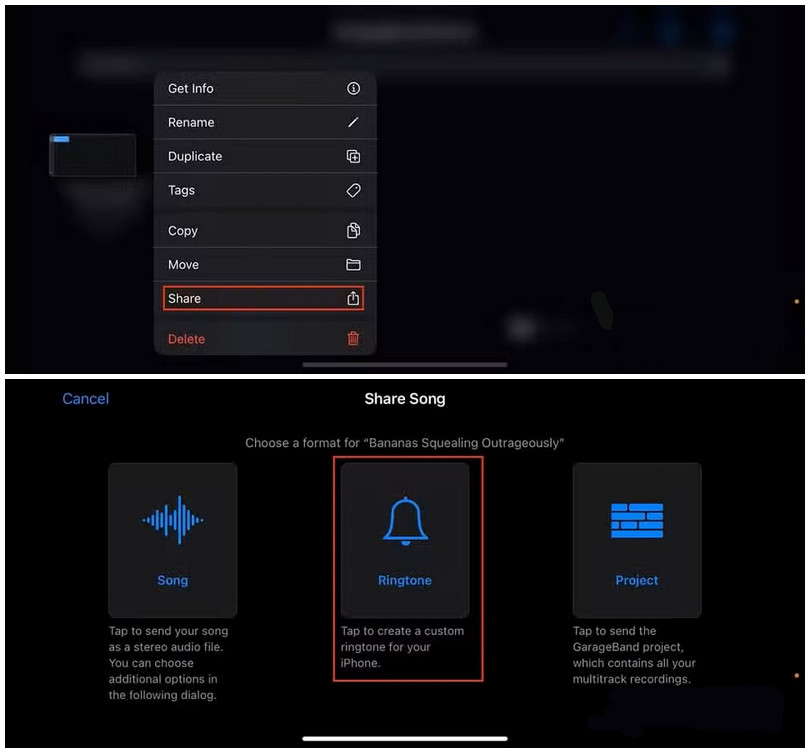
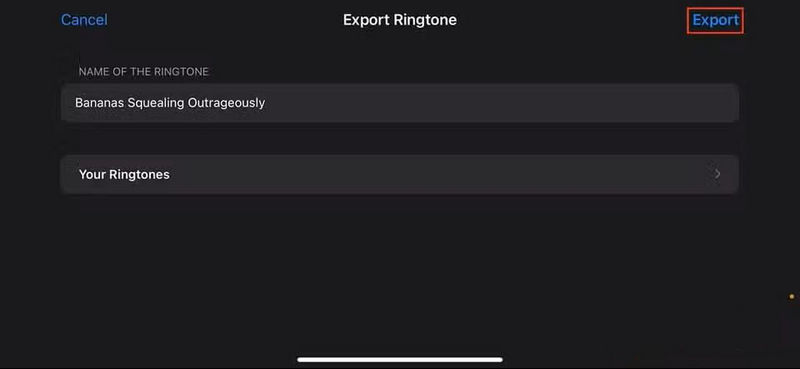
Step 6: Tap Export to create the ringtone. After exporting, go to Settings > Sounds & Haptics > Ringtone and select the new ringtone on your iPhone.
👍See also: Customize Spotify Music as Ringtones on Android/iPhone
Method 2 – Using Syncios iPhone Ringtone Maker (Easy Method)
Step 1: Install Syncios iPhone Ringtone Maker on your Mac or Windows computer. Connect your iPhone via USB and open the Ringtone Maker tool.
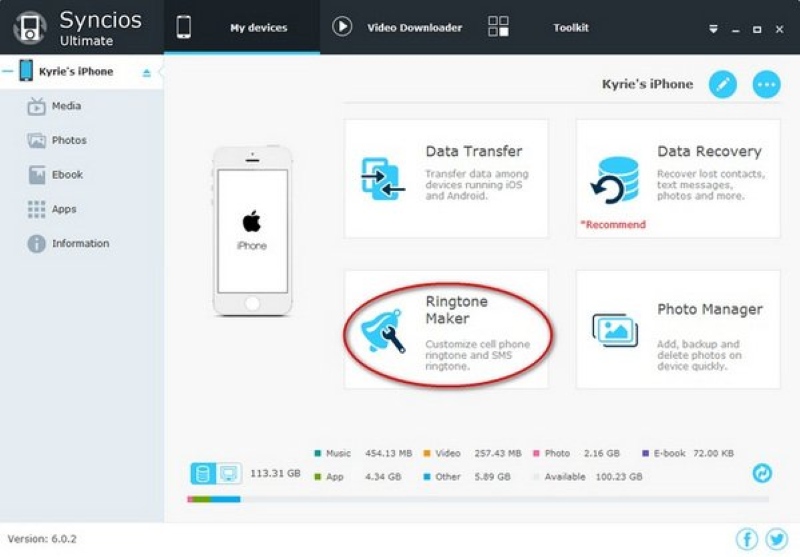
Step 2: The software will automatically detect your iPhone once connected.
Step 3: Drag your converted YouTube Music audio file into the program, then set the start and end points for the ringtone.
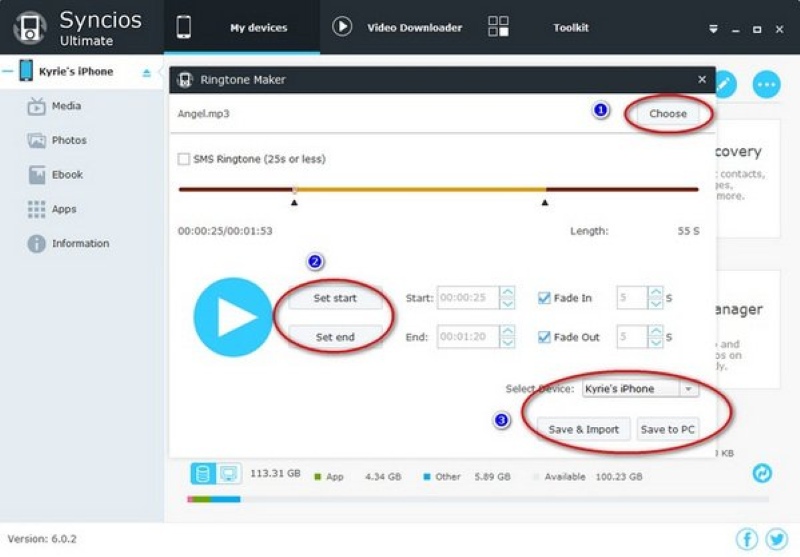
Step 4: Click Save and Import to Device to generate the ringtone. The software will automatically convert the file into an M4R ringtone format and transfer it to your iPhone. Then go to Settings > Sounds & Haptics > Ringtone on your iPhone and select it.
👉Tips: GarageBand lets you create ringtones directly on your iPhone with full manual control, making it flexible and completely free but a bit more time-consuming, while Syncios iPhone Ringtone Maker offers a faster, computer-based solution that automatically converts and transfers ringtones to your iPhone with fewer steps, making it more convenient for users who prefer simplicity over manual editing.
Disclaimer:
- All these methods are for personal or educational use only.
- You should not use this tool to distribute music or for business.
Part 5. FAQs about YouTube Music to Ringtones
💬 Q1: Is It Legal to Use YouTube Music Songs as Ringtone?
A: For personal use, it is generally fine. However, redistributing copyrighted music, selling ringtone files, or using them commercially may violate copyright rules. Please always use downloaded content responsibly.
💬 Q2: How do I set YouTube Music as an alarm on Android and iPhone?
You can set YouTube Music songs as alarms after converting them into local audio files.
On Android, open the Clock app, go to Alarm, tap Alarm sound, and select your saved music file directly. Android supports local audio for alarms without extra tools.
On iPhone, you first need to import the audio using apps like GarageBand or sync it to your device, then select it as an alarm sound in the Clock app.
If your songs are still in streaming format, AudiCable Music One can help convert them into local files before setting them as alarms.
💬 Q3: Why Is My Ringtone Not Showing on iPhone?
If your ringtone does not appear on your iPhone, it is usually due to one of the following reasons:
- The audio file is too long (iPhone ringtones are typically limited to around 30–40 seconds).
- The file format is incorrect or not supported (it must be a valid M4R format).
- The audio still contains DRM protection and cannot be used as a ringtone.
- The file was not properly imported into the iPhone ringtone library.
💬 Q4: How to Make a YouTube Video My Ringtone?
If you want to use audio from a YouTube video as your ringtone, you’ll first need to extract the audio and convert it into MP3 or M4R format. After that, Android users can set it directly in system settings, while iPhone users can import it through GarageBand or ringtone tools like Syncios iPhone Ringtone Maker.
Conclusion
You can’t directly set YouTube Music as a ringtone, but once the songs are converted into local audio files, the process becomes straightforward on both Android and iPhone.
AudiCable Audio Recorder helps you turn tracks into MP3 or AAC files with original quality preserved. After that, Android users can set them directly in system settings, while iPhone users can import them via GarageBand or desktop tools to generate ringtones.
In short: whether you want a simple YouTube to ringtone solution or a full custom ringtone setup for Android and iPhone, the key step is always converting YouTube Music into local audio files first.
Note: You can only convert the first 1 minute of each audio with the free trial version. Please buy the full version to unlock its limits.
Related Articles
- Customize Spotify Music as Ringtones on Android/iPhone
- Top 9 Free YouTube Playlist to MP3 Downloaders [Full Review]
- Best Free Tool to Remove Vocals from Any Song
- How to Download and Transfer YouTube Music to USB Drive
- Best YouTube Audio Rippers & MP3 Converters in 2026
- YouTube to WAV Converter: 11 Tools Tested in 2026