

AudiCable Audio Recorder for Windows is an all-in-one streaming music downloader and converter that lets you save songs, albums, playlists, podcasts, and more from Spotify, Apple Music, Amazon Music, Tidal, YouTube Music, Deezer, and other supported services. It can convert streaming audio to MP3, AAC, FLAC, WAV, AIFF, or ALAC while preserving audio quality and ID3 tags such as title, artist, album, artwork, and track number.
Launch AudiCable and choose a music service. Add the songs, albums, or playlists you want to download, then customize the output format and other settings. Click Convert to start downloading, and check the converted files in History.
For more detailed instructions, please refer to the AudiCable User Guide.
Run AudiCable on your computer, click on the Register icon to open the registration window, and then copy and paste the registration Email and Code you received into the window.
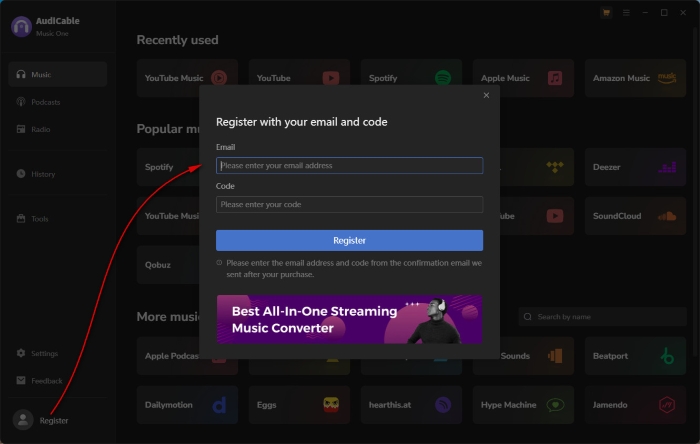
The registration information is case sensitive. So please do not add blank at the beginning or end of the code/email. And please make sure you've downloaded the correct program.
Each registration code can be activated on only one device. If it has already been activated on another device, please deactivate or sign out of that device before trying to activate it on your current device.
If the issue persists after checking the above information, please contact our customer support team for further assistance.
We provide two license plans to meet your requirements for the different usage times of AudiCable. The following will be the detailed info for these 2 plans:
1. There are 2 types of license plans for your choice (1 Year/ Lifetime). Which plan you select will determine how long you can use AudiCable with full features.
2. To ensure the service quality, the Automatic Renewal of the 1-Year plan is enabled by default. But no worries, the service is optional and can be disabled at any time. If you would like to cancel your next subscription, please go to the email of your order receipt, where there is a link to cancel automatic renewal. For more details, please check AudiCable Subscription FAQs.
3. The Lifetime Plan is for lifelong use & upgrade. You will be charged only once.
AudiCable now supports recording the music from popular music streaming services to MP3/AAC/WAV/FLAC/AIFF/ALAC format. (Tips: For Amazon Music, AudiCable additionally supports EAC3 and AC4 output formats.)
1. Please make sure you are using the latest version of AudiCable. If not, please download the latest version from Download Center.
2. Please check whether there is an external audio device connected with your computer while recording. If so, please disconnect it (including Bluetooth). Then restart your computer and record again.
If the problem persists, please send all details of your problem to our support team at [email protected], attached your Windows OS info as well as the log files of AudiCable.(Just find the menu button on the upper right corner and click on "Open Log File", and a window that contains the log file would pop up.) Please send all those log files to us.
Method 1: It may be due to the network connection issue. Please keep your network stable and reinstall the program from the official website.
Method 2: Please fully uninstall the previous AudiCable program, then reinstall it from the official website.
Note: If the problem persists, please contact us via [email protected].
Intelligent Mode automatically selects the appropriate conversion method. Record Mode records audio from the original music service, while YouTube Mode uses matching audio from YouTube for faster conversion.
YouTube Mode gets audio from YouTube, not directly from the original music service. Because YouTube versions may use different mastering, compression, or audio processing, the downloaded track can sound slightly different from the original. If you need to output songs with original audio quality, please select "Record Mode" in the settings window.
Before converting, go to Settings. Under Output File Name, choose the track information you want to include in the file name. Under Output Organized, select how you want your music to be organized, and use New Folder Level (/) to create subfolders. Check Preview to confirm the final file path.
Follow these two steps to download Spotify Lossless audio:
First, enable Spotify Lossless in the Spotify app: Profile > Settings > Audio quality > Streaming quality > Lossless.
In AudiCable, switch to Spotify App Mode, then go to Settings and select Record Mode as the conversion mode and Recommend / FLAC as the output format. (Learn More )
Please troubleshoot and resolve the issue based on the following checklist.
1. Update or reinstall the latest version
- In the app, go to Menu > Check for Updates and install the latest version if available.
- You can also download the latest version from the official Download Center or the download page for your specific product.
2. Switch between App and Web modes
If the conversion fails in one mode, try switching between App Mode and WebPlayer Mode and then retry the conversion.
3. Clear the app cache
- Basic cache clearing: Go to Menu > Clear Caches in the app.
- Clear all app data:
- Step 1: Open C:\Users\USERNAME\AppData\Roaming\.
- Step 2: Find the folder for the corresponding program, such as AudiCable.
- Step 3: Delete the program folder.
- Step 4: Restart the program and try the conversion again.
4. Check your account status
- Make sure you can log in to your account normally through an external web browser.
- Check that your subscription is still active for the relevant service, such as Apple Music.
5. Check your IP address and regional restrictions
Some services may restrict access based on your IP address or region. If you are using a VPN, try disabling it or switching to a different network or VPN location, then try the conversion again.
6. Contact Technical Support
If the issue persists, go to Menu > Feedback to contact technical support. To help us diagnose the problem more efficiently, include:
- A clear description of the issue
- The troubleshooting steps you have already tried and their results
- Relevant screenshots or screen recordings
- The program logs, if available
If you have any other questions while using AudiCable for Windows, please feel free to contact us via [email protected]

