


AudiCable Audio Recorder
Streamrip Review: What It Is, How to Use It & Is It Safe?

By
Updated on: July 15, 2026
Category: Music Streaming Tips
If you’re looking for more control over your music library, Streamrip is a music downloader worth knowing about. Unlike regular streaming apps that keep your music locked inside their platforms, this open-source Streamrip software lets you download and manage music files locally. It supports popular platforms like Qobuz, TIDAL, Deezer, and SoundCloud. You can download tracks, albums, and playlists while preserving available audio quality and metadata.
In this review, we'll explain how to use Streamrip, explore its key features, installation process, pros and cons, and compare the best Streamrip alternatives for different users.

📑 Content
What is Streamrip?
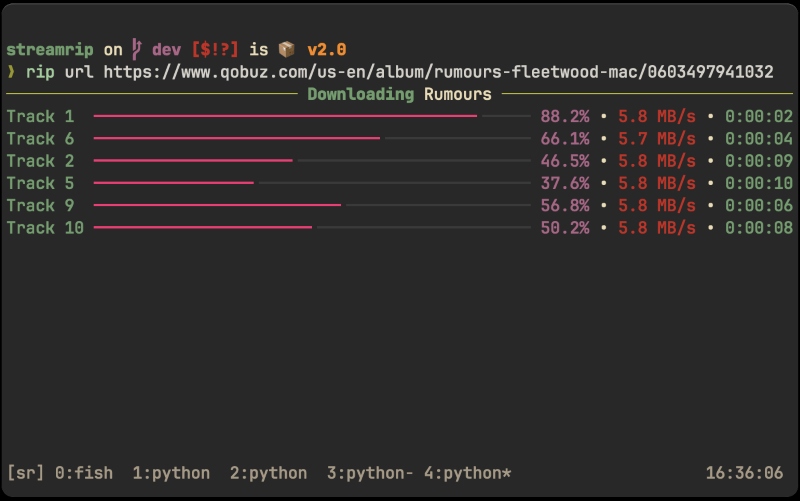
Streamrip is an open-source music downloader that allows users to download music from supported streaming platforms and save files locally. Unlike traditional desktop downloaders, Streamrip works through the command line instead of a graphical interface. This gives advanced users more control over download settings, file organization, and audio preferences.

Key Features of Streamrip
Supports Multiple Streaming Platforms
Streamrip supports music downloads from platforms like Qobuz, TIDAL, Deezer, and SoundCloud. It can also import Spotify and Apple Music playlists through last.fm integration.
Downloads Tracks, Albums, and Playlists
Streamrip can download tracks, albums, playlists, discographies, and labels from supported services. It supports formats such as FLAC, ALAC, MP3, AAC, and OGG Vorbis for flexible local music management.
Fast Downloads & Library Management
With concurrent downloads, Streamrip can process multiple tasks more efficiently. Its built-in database helps track downloaded items and avoid duplicates, while preserving available metadata such as track titles, artists, and album details.
Advanced Customization Options
Streamrip allows users to customize download settings through configuration files, including file location, folder organization, audio preferences, and other options for managing their music library.
Additional Tools and Integrations
Streamrip also includes useful features such as interactive search, rate limiting, download control, and youtube-dl integration for more flexible workflows.
How Does Streamrip Work?
Streamrip follows a command-line workflow to download music as local files. The process includes selecting a music source, configuring settings, running commands, and saving files locally.
🎵 1. Select Music Source
Choose a track, album, playlist, or discography from supported platforms like Qobuz, TIDAL, Deezer, or SoundCloud.
↓
⚙️ 2. Configure Streamrip Settings
Set download preferences, file location, audio options, and organization settings before starting the download.
↓
⌨️ 3. Enter Commands to Start Download
Provide the music URL and run the required Streamrip command through Command Prompt or Terminal.
↓
⬇️ 4. Streamrip Processes the Download
Streamrip retrieves available audio files, applies settings, and converts formats if needed.
↓
📁 5. Save and Manage Music Library
Downloaded files are stored locally with available metadata for easier organization and playback.
Is Streamrip Safe and Legal to Use?
Is Streamrip Safe?
Yes, Streamrip itself is generally considered safe when installed from its official GitHub repository. As an open-source project, its source code is publicly available for review, and users can check the project history, updates, and community feedback before installation. It is noteworthy that users should always avoid downloading modified versions from unofficial websites, as third-party packages may contain unwanted software or security risks.
Is Streamrip Legal?
Streamrip is an open-source software project designed to help users download and manage music files. The software itself is not illegal simply because it provides downloading features. However, whether downloading specific music content is permitted depends on factors such as copyright laws, your location, and the terms of service of the streaming platform.
Users should make sure they have the necessary rights or permissions to download and use any content and should follow the rules of the services they access. Always download Streamrip from its official GitHub repository.
How to Install and Use Streamrip?
If you're wondering how to use Streamrip, the process is different from installing a typical desktop application. Since it runs through the command line, users need to prepare the required environment first.
Step-by-Step Streamrip Installation Guide
Step 1 Install Python and Required Tools
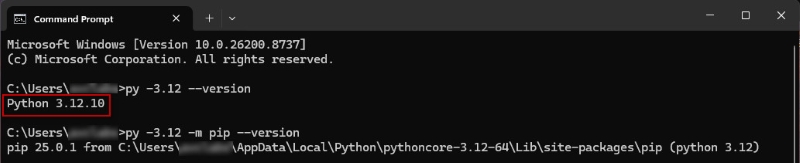
Streamrip requires Python and pip to install. Python provides the environment needed to run Streamrip, while pip is used to install the software. Before installing Streamrip, make sure your computer has Python 3.10 or later installed. After Python is installed, verify that it is available through Command Prompt or Terminal by entering:
python --versionIf Python is installed correctly, you will see the installed version number, confirming that your system is ready for Streamrip installation.
Step 2 Install Streamrip
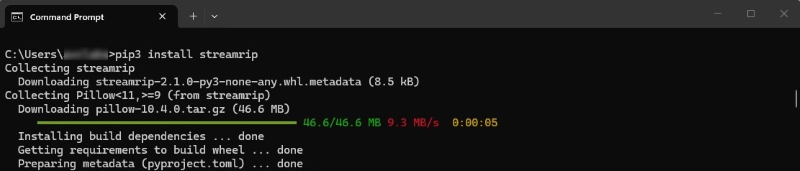
After Python and pip are ready, users can install Streamrip by running:
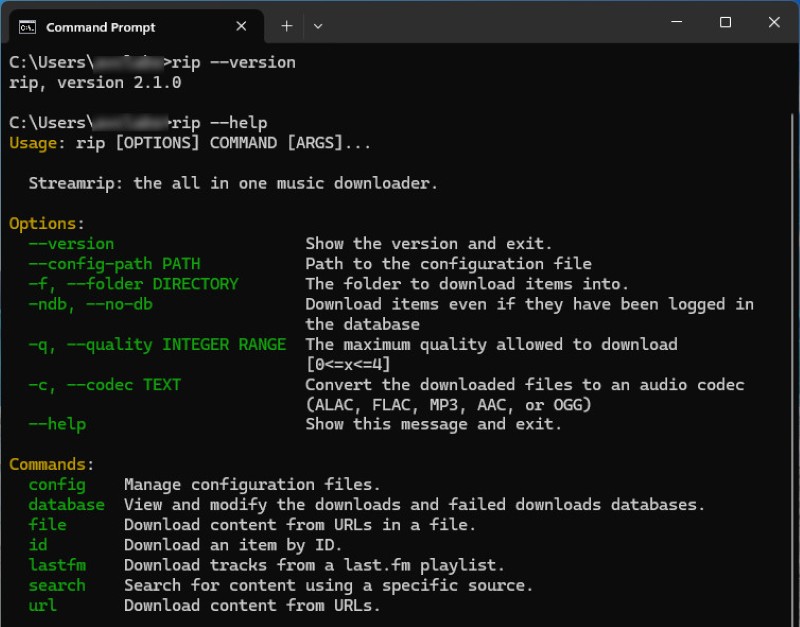
pip install streamripOnce the installation is complete, verify that Streamrip is available with:
rip --versionIf the command works correctly, Streamrip is ready to use.
Step 3 Configure Streamrip Settings
Before downloading music, users can customize Streamrip through its configuration file. Common settings include download location, file organization, audio preferences, and output options.
To open the configuration file, run the following command in Command Prompt:
rip config open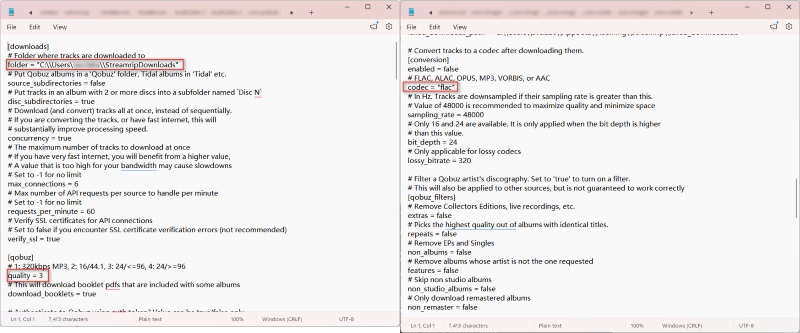
Step 4 Download Music with Streamrip
After setup is complete, users can start downloading music through Streamrip commands. The basic workflow is:
Find music → Configure download options → Run the command → Save files locally
You can download content by providing a URL from supported platforms, such as a track, album, playlist, or artist page. Streamrip also supports searching music directly from supported sources, allowing users to find content without manually copying every link.
Note: For Spotify and Apple Music playlists, Streamrip works through last.fm integration rather than directly downloading from these platforms. Users can import playlist information through last.fm and download the matching tracks from supported sources.
Our Streamrip Test: Installation and Download Experience
To evaluate the real-world experience of using Streamrip, we tested the software on a Windows 11 computer, from installation to downloading music from Qobuz.
Here's our test result:
| Test | Result |
|---|---|
| Operating System | Windows 11 |
| Music Source | Qobuz |
| Test Content | 1 album (12 tracks) |
| Output Format | FLAC |
| Download Result | 12/12 tracks completed |
| Failed Downloads | None |
| Metadata | Track titles, artists, and album information preserved |
| Cover Artwork | Preserved |
| Setup Time | About 35 minutes |
The download process itself was smooth once Streamrip was configured. However, the initial setup required installing Python, configuring settings, and using command-line commands, which may be challenging for beginners.
Streamrip Not Working? Common Errors and Solutions
Although Streamrip installation is manageable for experienced users, beginners may run into setup issues. Here are some common problems and quick fixes.
"Python is not recognized" or "Python command not found"
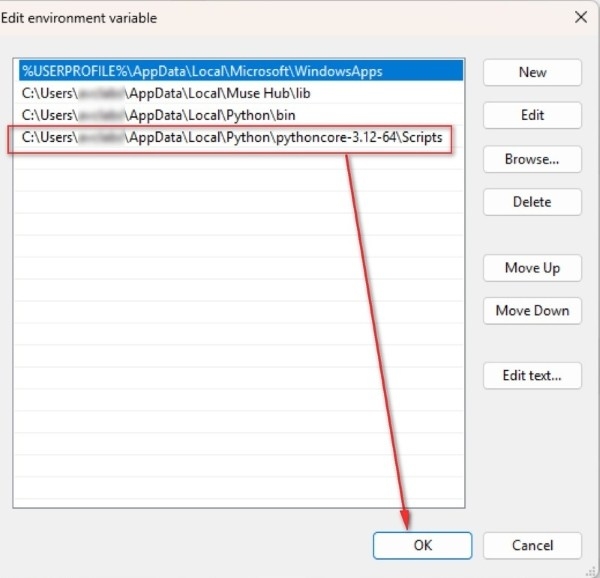
Fix: Make sure Python is installed correctly and added to PATH. If Python is missing, reinstall Python and make sure to enable: Add Python to PATH during installation. Then restart Command Prompt and try again.
Streamrip Installation Failed
Streamrip depends on Python packages that may fail to install because of an outdated pip version, incompatible Python version, or missing dependencies. Fix: First check your Python version. Streamrip requires Python 3.10 or later. Then update pip and try installing Streamrip again.
python -m pip install --upgrade pip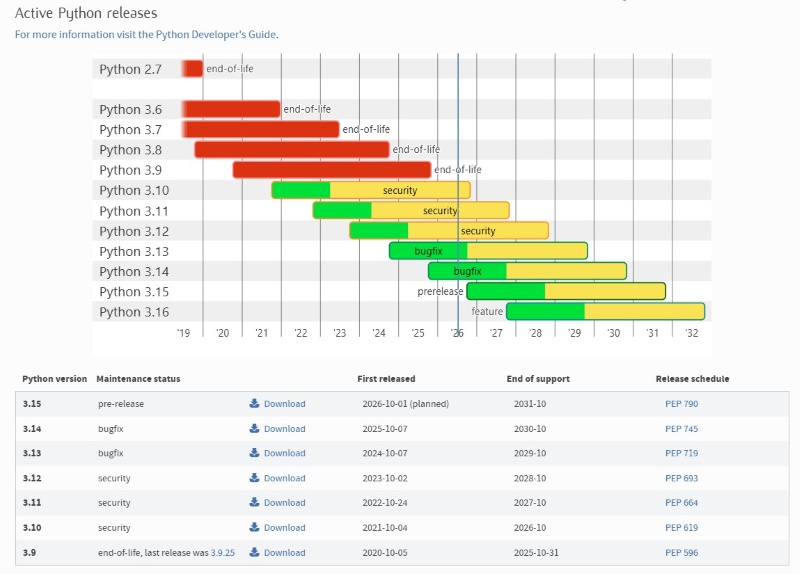
"rip is not recognized as an internal or external command."
Streamrip may be installed successfully, but the folder containing rip.exe is not available in your system PATH. Fix: Check whether Streamrip is installed:
pip show streamripFind the installation location:
where ripIf the command cannot find rip.exe, reinstall Streamrip or add the Python Scripts folder to PATH.
Streamrip Login Failed
Possible fixes:
- Check your username and password
- Reopen Streamrip configuration
- Update Streamrip to the latest version
pip install --upgrade streamripStreamrip Pros and Cons
Pros
Free and Open Source
Streamrip is completely free and open source, making it accessible for users who want more control over their music downloads.
Powerful Customization
Advanced users can customize download settings, file organization, and workflows through configuration options.
Supports Multiple Music Sources
Streamrip supports several music platforms, making it useful for users managing libraries across different streaming services.
High-Quality Audio Support
Depending on the source, Streamrip can download music from 320 kbps MP3 to lossless CD-quality audio and Hi-Res FLAC up to 24-bit/192 kHz.
Cons
Requires Technical Knowledge
Streamrip is not a typical desktop application. Users need some familiarity with Python, command-line operations, and configuration files, which can be challenging for beginners.
No Graphical User Interface
Streamrip does not provide traditional buttons and menus. Users who prefer visual controls and one-click downloads may find it less convenient.
Troubleshooting May Require Extra Effort
When problems occur, users may need to check documentation or community discussions to find solutions.
Note: Community discussions also reflect this learning curve. Some users report configuration, login, or version-related issues that require checking settings or troubleshooting before downloads work as expected.
Who Should Use Streamrip?
✅Streamrip is a good choice if you
- Enjoy open-source software
- Are comfortable with command-line tools
- Want advanced customization options
- Prefer technical control over simplicity
❌Streamrip may not be ideal if you
- Prefer a simple desktop application
- Do not want to install Python or configure command-line tools
- Want a visual download workflow
- Prefer fewer setup steps
The best choice depends on whether you value flexibility or convenience. Streamrip is a powerful option for advanced users, while beginners may prefer a simpler music downloader with a more intuitive interface.
Best Streamrip Alternatives in 2026
If you are looking for the best Streamrip alternatives in 2026, the right choice depends on whether you prefer customization or simplicity.
1. AudiCable Music One — Best Desktop Alternative for Beginners
If Streamrip feels too technical, AudiCable Music One offers a much more beginner-friendly desktop experience. Unlike Streamrip's command-line workflow, it uses a graphical interface that lets users download songs, albums, and playlists from multiple streaming services without any command-line setup. AudiCable supports MP3, FLAC, AAC, WAV, AIFF, and ALAC while preserving the original audio quality and available metadata. With an intuitive interface and batch download support, it makes building and organizing an offline music library much easier.

Best AudiCable Music One( Mac / Win )
- Download songs, albums, and playlists from Spotify, Apple Music, Qobuz, TIDAL, Amazon Music, YouTube Music, and other streaming services.
- Save music as MP3, FLAC, WAV, AAC, AIFF, or ALAC while preserving the original audio quality and available ID3 tags.
- Batch download entire playlists and albums at up to 10× speed with a simple, click-based workflow.
- Support both Free and Premium accounts on supported streaming platforms.
- Includes built-in audio tools such as a Format Converter, ID3 Tag Editor, CD Burner, and AI Vocal Remover for managing your local music library.
- Enjoy free software updates and professional customer support.
How to Download Music with AudiCable Music One?
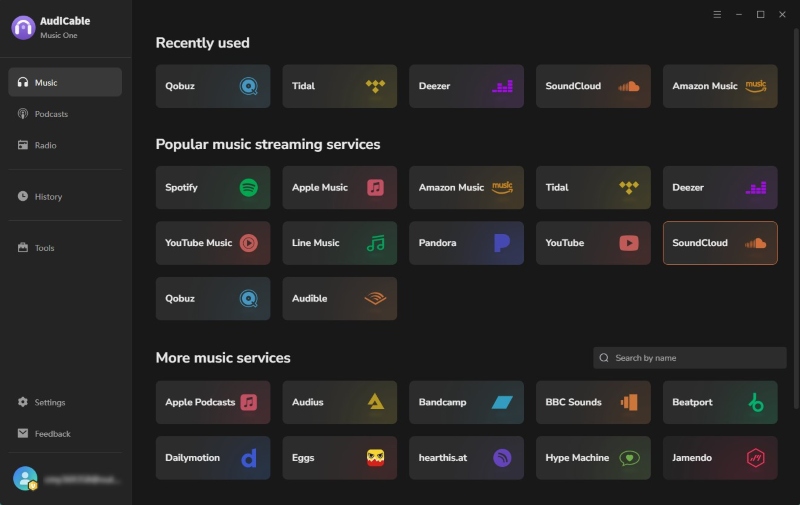
Step 1 Choose a Music Service
Launch AudiCable Music One and select the streaming service you want to use, such as Spotify, Apple Music, TIDAL, or Qobuz. Then sign in to your account if required.
Step 2 Select Output Settings
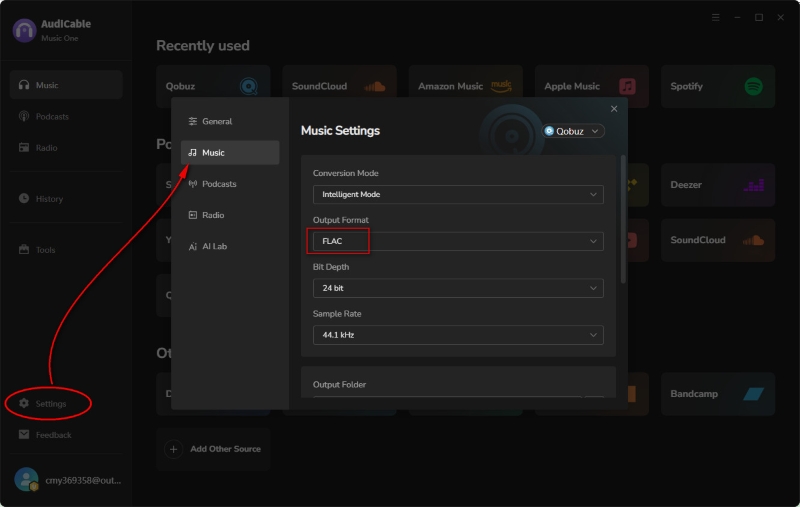
Open "Settings" and choose your preferred output format, such as MP3, FLAC, AAC, WAV, AIFF, or ALAC. You can also customize the output folder, audio quality, and file organization options.
Step 3 Add Music to Download
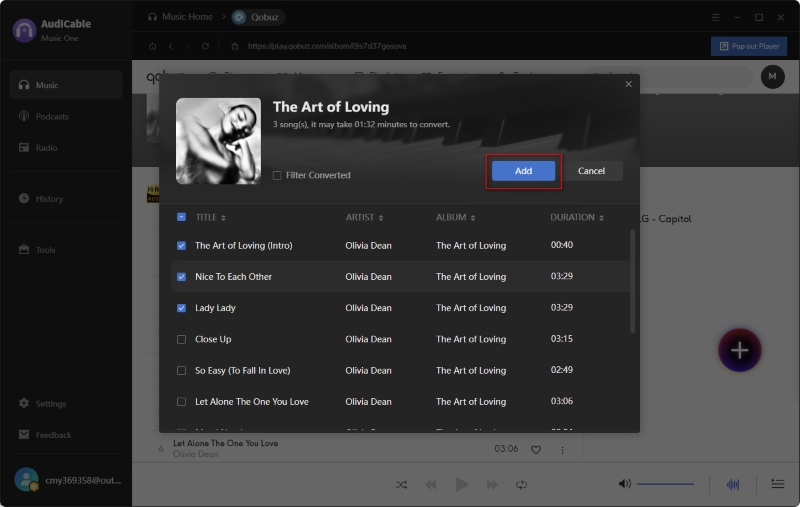
Browse or paste the link to a song, album, or playlist, then add the music you want to download to the conversion list.
Step 4 Download and Access Your Music
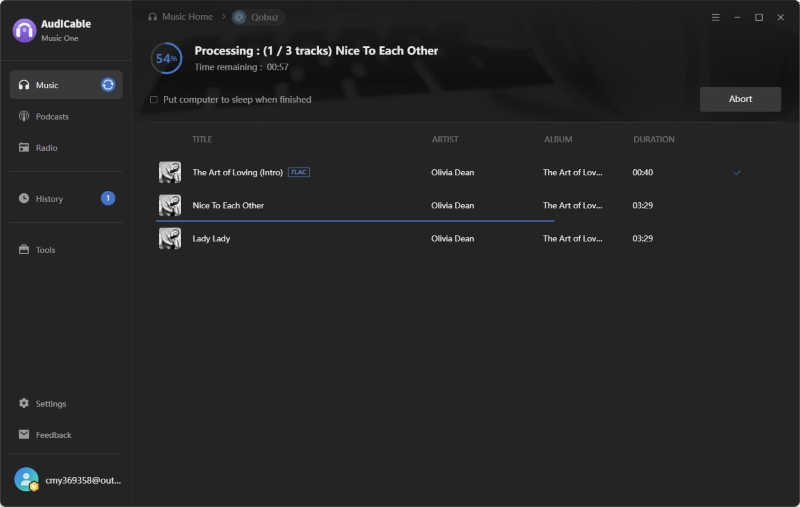
Click "Convert" to start downloading. Once the process is complete, open the "History" section to find your downloaded files, which you can play offline on any compatible device.
2.Online Music Downloaders — Best for Quick Downloads
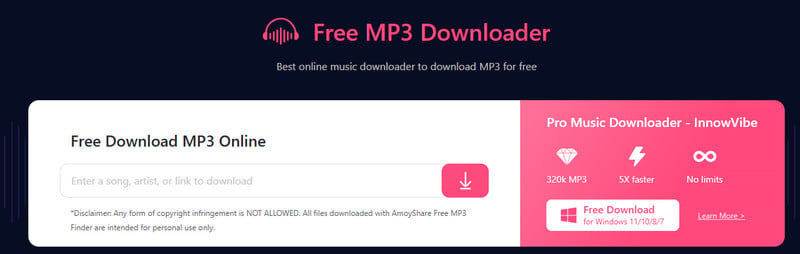
Online music downloaders are useful for occasional downloads without software installation. They are simple and accessible, requiring users to paste a link and download. Limitations include less control over audio quality, incomplete metadata, and fewer library management options. They are convenient for quick downloads but not ideal for long-term music collections.
Streamrip vs AudiCable: Which One Should You Choose?
Streamrip and AudiCable are designed for different types of users.
| Feature | Streamrip | AudiCable Music One |
|---|---|---|
| Interface | Command-line interface (CLI) | Graphical desktop interface with simple controls |
| Installation | Requires Python setup and command-line configuration | Standard desktop installation process |
| Workflow | Command-based and highly customizable | Click-based workflow designed for beginners |
| Supported Platforms | Qobuz, TIDAL, Deezer, SoundCloud, and additional integrations | Spotify, Apple Music, Amazon Music, TIDAL, Qobuz, YouTube Music, SoundCloud, Deezer, and more |
| Output Formats | FLAC, ALAC, MP3, AAC, OPUS, and Vorbis | MP3, AAC, WAV, FLAC, AIFF, and ALAC |
| Built-in Audio Tools | No built-in audio management tools | Format Converter, ID3 Tag Editor, CD Burner, and AI Vocal Remover |
Pro Tips: If you like the flexibility of the Streamrip software but prefer a simpler workflow, AudiCable Music One is a strong alternative.
FAQs About Streamrips
💬 Q1: Does Streamrip Work on Windows, macOS, and Linux?
A: Yes. Streamrip can run on Windows, macOS, and Linux as long as Python is properly installed and configured. Since Streamrip is a command-line application, the installation process is similar across different operating systems and requires using terminal commands. Users should make sure their system meets the required Python version and dependencies before installing Streamrip.
💬 Q2: Is There a GUI Version of Streamrip?
A: No. Streamrip does not provide an official graphical user interface. It is designed to work through command-line commands and configuration files. If you prefer selecting music, adjusting settings, and managing downloads through buttons and menus, a desktop music downloader with a graphical interface like AudiCable Music One may be more suitable.
💬 Q3: Can Streamrip Retry Failed Downloads?
A: Yes. Streamrip can record failed download items in its database and provides a repair function for retrying them. This can be useful when individual tracks fail because of temporary connection or source-related issues.
Disclaimer:
- All these methods are for personal or educational use only.
- You should not use this tool to distribute music or for business.
Final Verdict: Is Streamrip Worth Using?
Overall, Streamrip is one of the most capable open-source music downloaders available today for users who prefer command-line tools. While it offers powerful features, its command-line workflow and technical setup may not be the best fit for everyone.
If you prefer a simpler desktop workflow, AudiCable Music One offers an intuitive interface, support for multiple streaming services, high-quality audio output, and batch downloads without requiring any command-line setup. For beginners, it offers a more straightforward way to download and manage music offline.
Get AudiCable Music One Today!!
Related Articles
- 12 Best Sites to Download MP3 Music for FREE
- Best 8 MP3Juices Downloader Alternatives in 2026
- Is EzMP3 Safe & Reliable in 2026? Full Test & Best Alternatives
- Top 13 Free Unblocked Music Sites & Apps for School in 2026
- Best Free Instagram Audio Downloader (2026) – Convert to MP3
- 10 Best Free Hindi Songs MP3 Download Sites in 2026

