


AudiCable Audio Recorder
Apple Music Playlist Downloaders: Save Playlists as MP3/FLAC

By
Updated on: August 18, 2026
Category: Apple Music Tips
Can you download an Apple Music playlist to MP3? Yes—but the method you choose determines whether you get temporary offline access or standalone audio files. Apple Music's built-in downloads are intended for offline playback within the app, while third-party tools can save playlists as local audio files such as MP3 or FLAC.
In this guide, we compare four approaches—Apple Music's official download feature, an online downloader, the open-source GAMDL, and AudiCable—to help you choose the right option for your needs.
See also >>> Best Spotify Playlist Downloader 2026: 11 Tools Tested
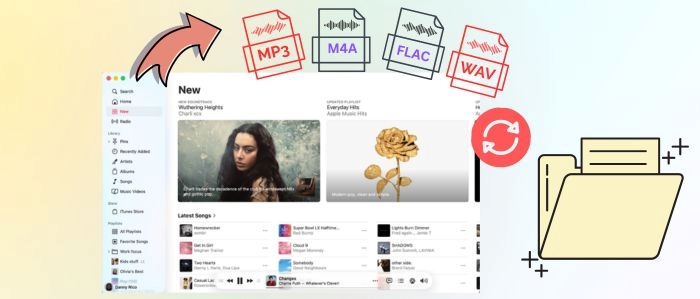
⭐ Editor's Pick: AudiCable Apple Music Playlist Downloader
Looking for an easier way to save Apple Music playlists as standalone audio files? AudiCable supports batch conversion to MP3, FLAC, WAV, and more while preserving metadata and album artwork.
Why consider AudiCable?
- Batch-convert entire playlists
- Preserve metadata and album artwork
- Support MP3, FLAC, WAV, and more
- Built-in Apple Music web player
📑 Content
Why Download Apple Music Playlists to MP3?
Apple Music offers Lossless and Hi-Res Lossless audio for supported songs,, but its built-in downloads are designed for listening within the Apple Music app. Saving your playlists as standalone audio files gives you more control over where, how, and when you listen to your music.
🔓1. Listen on More Devices
Want to take your playlists beyond Apple Music? Standalone MP3 files can be transferred to MP3 players, Android devices, USB drives, car audio systems, smartwatches, and other compatible music players.
💾2. Keep Your Playlists Available Locally
With standalone files stored on your computer or external drive, you can keep your favorite playlists readily available without depending on Apple Music's in-app downloads or an active subscription.
🎨3. Use Your Music More Flexibly
Standalone audio files are easier to organize, transfer, and use with compatible apps for video editing, DJ mixing, audio projects, and personal music management.
Method 1: Apple Music's Official Download
Apple Music makes offline listening simple and convenient. Its built-in download feature lets subscribers save playlists for offline playback across iPhone, iPad, Mac, and Windows. However, these downloads remain within the Apple Music app, so they can't be transferred to other devices, music players, or software as standalone audio files.
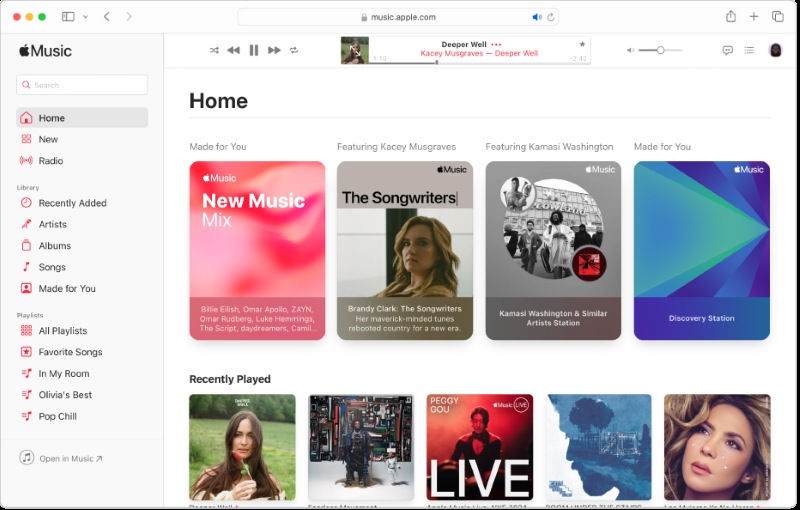
How to Download a Playlist from Apple Music for Offline Listening?
Step 1. Open the "Apple Music" app and find the playlist you want to download.
Step 2. Tap "Add" to add the playlist to your Library.
Step 3. Open the playlist in your Library and tap the "Download" button.
Step 4. Wait for the download to finish, then you can listen to the playlist offline.
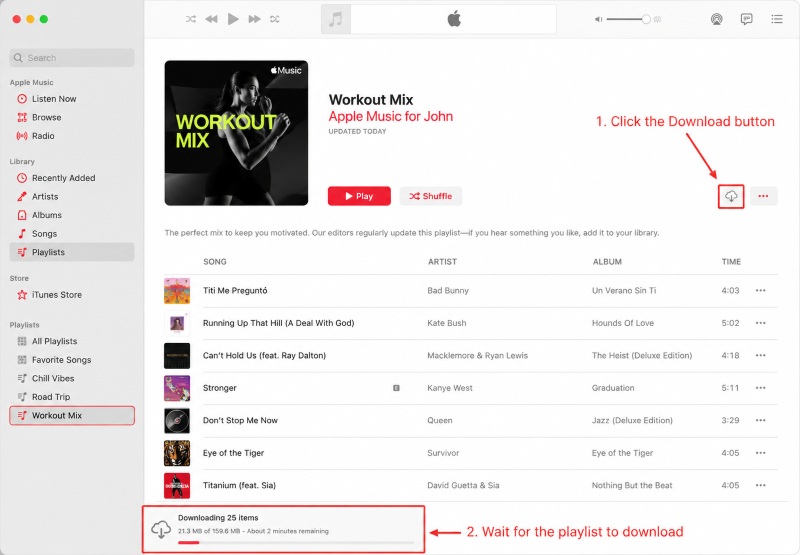
⚠️Note: An active Apple Music subscription is required to add catalog content to your library and download it for offline listening.
Pros
- Simple and convenient.
- Official and reliable.
- Works for offline playback.
- Syncs across supported Apple devices.
Cons
- No standalone MP3 or FLAC files.
- Requires an active subscription.
- Downloads stay within Apple Music.
Verdict: Apple Music's built-in download is ideal for offline listening, but not for users who want standalone files they can transfer or play outside the app.
Method 2: Online Apple Music Playlist Downloader
If you don't want to install any software on your computer, using a web-based downloader is a quick and convenient alternative.
Featured Tool: AppleMusicMp3 Downloader
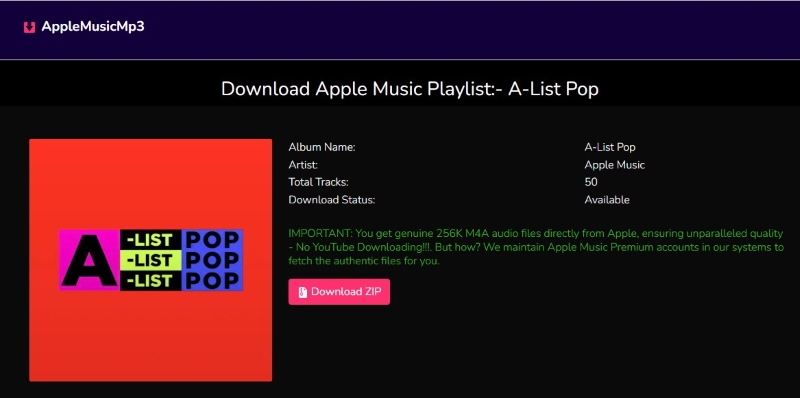
One option worth considering is AppleMusicMp3 Downloader, a browser-based tool that lets you download songs and playlists from Apple Music without installing a desktop app. Instead of keeping downloads inside the Apple Music app, it lets you paste an Apple Music link and save the available tracks as standalone audio files. This makes it a convenient option if you only need to download a playlist occasionally and don't want to install additional software.
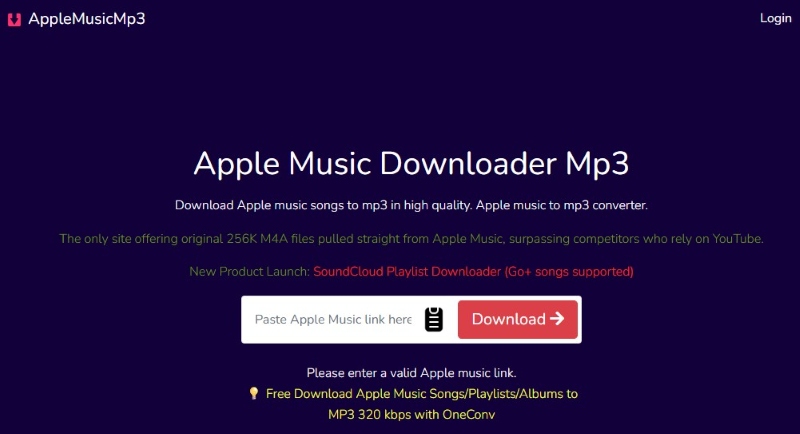
How to Download an Apple Music Playlist with AppleMusicMp3?
Step 1: Copy the URL of the Apple Music playlist you want to download.
Step 2: Open AppleMusicMp3 Downloader and paste the playlist link into the search box.
Step 3: Click "Download" to let the tool process the playlist.
Step 4: Download the available tracks individually or use the ZIP option when available.
Pros
- Free tier available.
- No software installation.
- Simple playlist download process.
- Supports ZIP downloads when available.
Cons
- Only 2 songs per playlist for free.
- Premium account required for full playlists.
- The website is sometimes unstable.
Verdict: AppleMusicMp3 Downloader is a convenient option for occasional Apple Music downloads, but the free version is limited to two songs per playlist. A Premium account is required to download a complete playlist, and the website can be unstable at times.
Method 3: Open-source Apple Music Downloader
If you're comfortable with command-line tools, an open-source downloader offers more control than a typical web-based tool.
Featured Tool: Gamdl
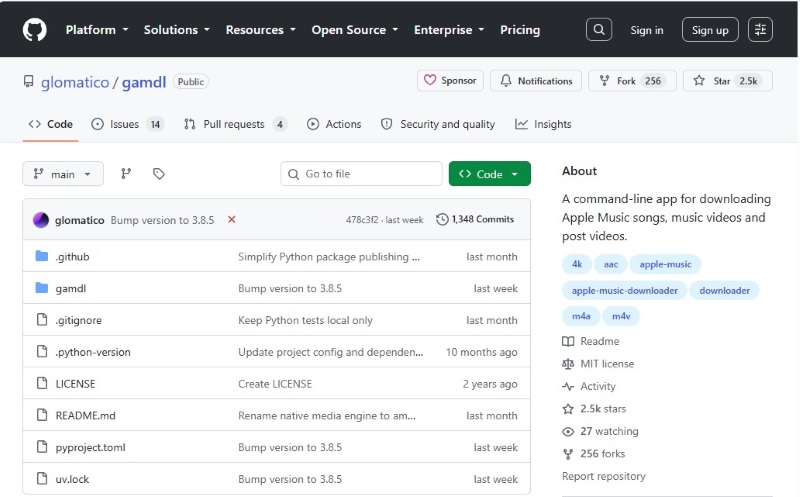
GAMDL is a free, open-source Apple Music downloader that lets you download songs, albums, and playlists directly from the command line. It supports multiple output formats and can preserve metadata, artwork, and synced lyrics. Its main appeal is the level of control it gives users over the download process, making it a good option for those who want more than a simple paste-and-download tool.
How to Use Gamdl to Convert an Apple Music Playlist to MP3?
Step 1: GAMDL requires Python and FFmpeg to run. So download and install both before setting up GAMDL.
Step 2: Open Command Prompt or PowerShell and install GAMDL with pip:
pip install gamdlStep 3: Sign in to Apple Music in your browser, export the cookies as a cookies.txt file, and place it in the GAMDL folder.
Step 4: Open Apple Music, find the playlist you want to download, and copy its URL.
Step 5: Open Command Prompt or PowerShell in your GAMDL folder and run:
gamdl "APPLE_MUSIC_PLAYLIST_URL"
Replace APPLE_MUSIC_PLAYLIST_URL with the link you copied.
GAMDL will read the playlist and start downloading the available tracks.
Step 6: When the playlist appears, use the arrow keys to select tracks, press Space to select or deselect them, and press Enter to start downloading.
⚠️Note: GAMDL is a command-line tool, so it requires more technical setup than a web-based downloader. Its exact installation and authentication requirements can also change between versions.
🔬 Our Test: Setting Up GAMDL on Windows
We tested GAMDL on a Windows 11 PC to see how difficult it is to get the command-line downloader ready for use. The installation itself was straightforward, but we ran into a PATH issue before GAMDL could be launched from Command Prompt.
1. Installing GAMDL
Installing GAMDL with pip install gamdl completed successfully on our Windows test machine. The installation took less than two minutes, but the next step revealed a common usability hurdle.
2. Fixing the “gamdl is not recognized” Error
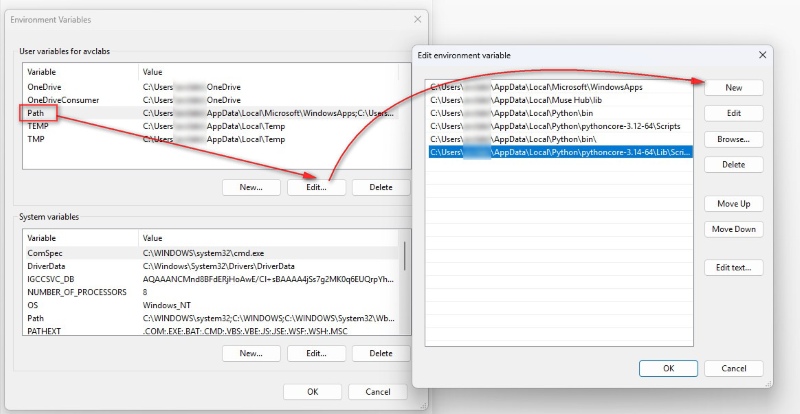
Running gamdl --help initially returned a “not recognized” error. In our case, the GAMDL executable was installed under Python's Scripts directory, but that location wasn't available in the system PATH. After adding the correct Scripts directory to PATH and reopening Command Prompt, the gamdl command became available.
3. Testing GAMDL Without an Apple Music Subscription
We were able to verify the installation, command-line interface, and basic configuration steps. However, because our test account did not have an active Apple Music subscription, we could not complete an actual Apple Music download. As a result, we did not independently evaluate GAMDL's playlist download performance or audio output quality.
✨Tips: If you don't have an active Apple Music subscription or prefer to avoid command-line setup, AudiCable Apple Music Playlist Downloader offers a simpler desktop workflow without the Python, FFmpeg, PATH, and cookie configuration required by GAMDL.
Pros
- Free and open source
- Supports playlists, albums, and songs
- Offers advanced output and quality options
- Preserves metadata and artwork
- Ad-free
Cons
- Not beginner-friendly; relies entirely on command-line commands
- Requires Python and browser cookies
- Requires an active Apple Music subscription
- May break when Apple updates its security protocols
Verdict: GAMDL is a powerful option for technically comfortable users, but its Python, FFmpeg, PATH, and authentication requirements make it less suitable for beginners.
Method 4: Professional Desktop Software
For users who want a stable way to download Apple Music playlists, desktop software offers a more convenient experience.
Recommended Tool: AudiCable Apple Music Playlist Downloader
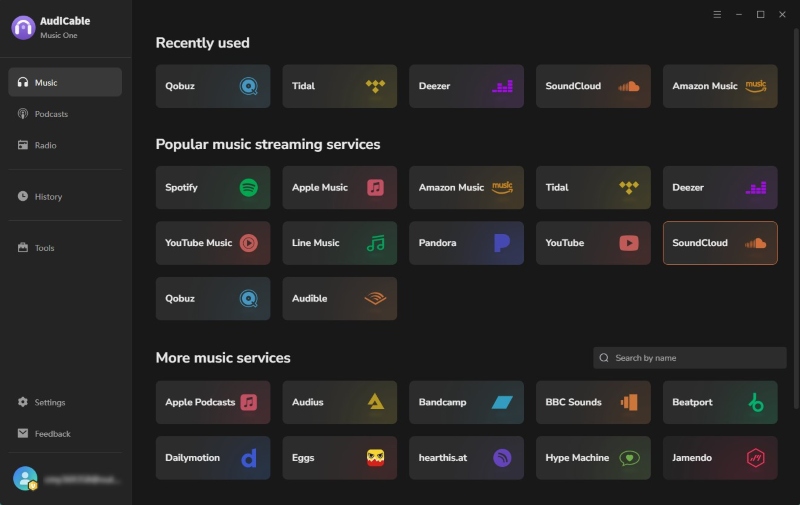
AudiCable Apple Music Playlist Downloader is a desktop solution for converting Apple Music playlists into standalone audio files. It supports multiple output formats, including MP3, FLAC, and ALAC, and can batch-convert entire playlists while preserving metadata and album artwork. Its built-in Apple Music web player also makes it easy to find and add playlists without switching between apps. AudiCable also supports other major streaming music services, making it useful for users with music libraries across multiple platforms.
How to Download an Apple Music Playlist to MP3 with AudiCable?
Step 1 Select Apple Music as the Platform
Launch AudiCable on your Windows or Mac computer and select Apple Music from the main interface. Sign in to your Apple Music account when prompted.
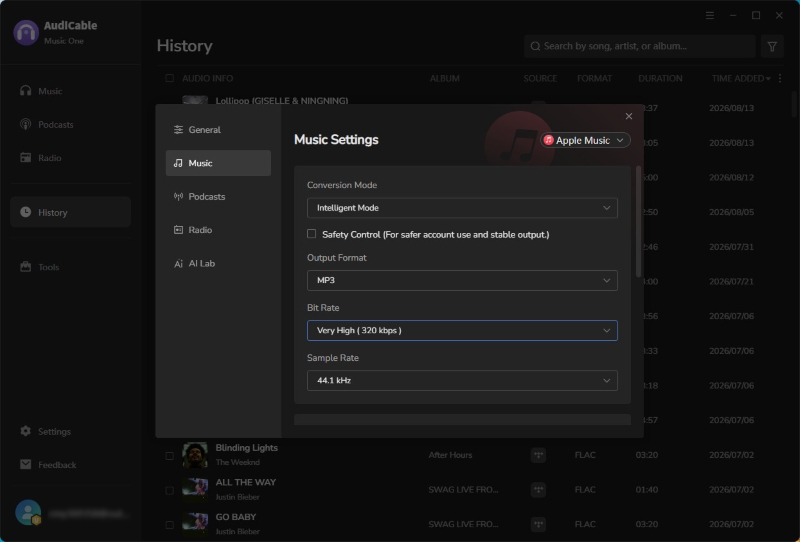
Step 2 Customize the Output Settings
Click "Settings" icon in the bottom-left corner to choose your preferred output format and audio quality. For example, you can select MP3 and choose up to 320kbps when available. You can also select an output folder to keep your converted music organized.
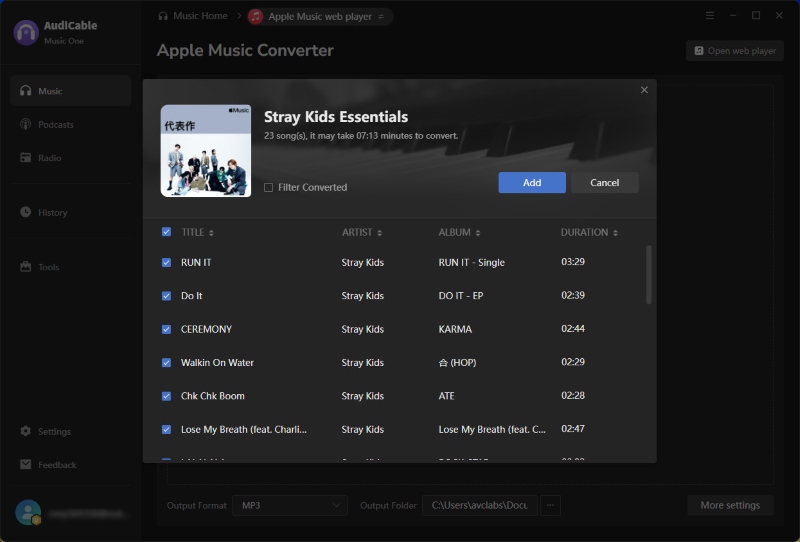
Step 3 Add an Apple Music Playlist
Open the Apple Music playlist you want to download in AudiCable's built-in web player. Click the "+" button to parse the playlist and load its tracks, then click "Add" to add the playlist to the conversion list.
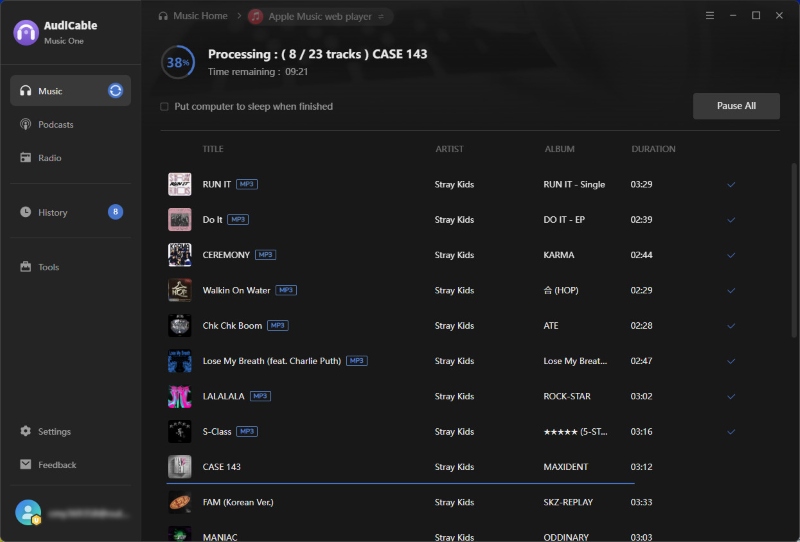
Step 4 Convert the Playlist to MP3
Click the "Convert" button, AudiCable will start converting the playlist and save the converted tracks to your computer. You can click "Pause All" at any time to pause the conversion.
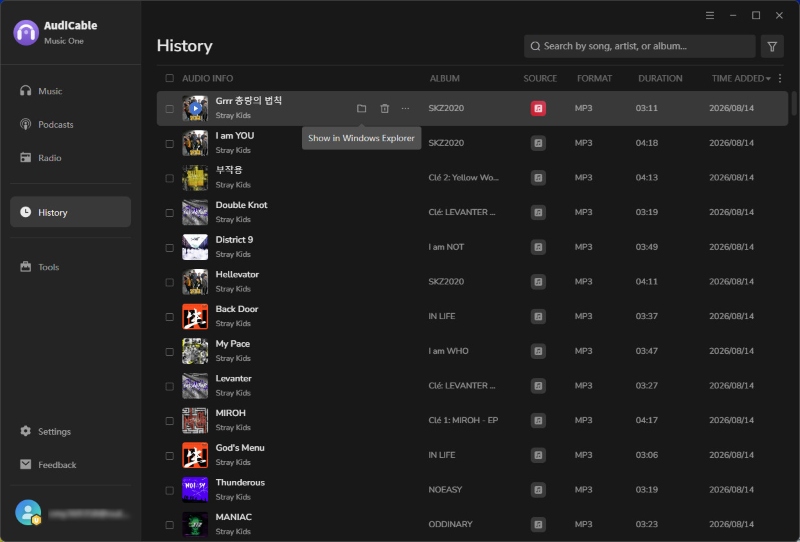
Step 5 Locate Your Downloaded Apple Music Files
Once converted, open "History" from the left sidebar. Click the folder icon next to a track to open the output folder and access your downloaded Apple Music MP3 files.
Our Experience
We tested AudiCable on Windows 11 with an Apple Music playlist containing 23 tracks. The playlist was parsed through the built-in Apple Music web player, and the selected songs were converted in batch with metadata and album artwork well preserved.
✅ Pros
- Supports batch conversion of Apple Music playlists.
- Offers MP3, ALAC, AAC, FLAC, AIFF, and WAV output.
- Preserves accurate metadata and album artwork for an organized library.
- Supports both free and paid Apple Music Accounts.
- Supports multiple streaming music services like Spotify, YouTube Music, Amazon Music, etc.
- Offers additional tools such as an audio editor, CD Burner, and ID3 tag editor.
⚠️ Cons
- The free trial limits the length of each converted track.
FAQs About Apple Playlist Converters
💬 Q1: Is it safe to use an Apple Music playlist downloader?
A: It depends on the downloader. Reputable desktop software is generally safer than unfamiliar websites with aggressive ads, redirects, or unexpected downloads. Check the developer, avoid unnecessary permissions, scan downloaded files for malware, and never enter your Apple ID password into an unfamiliar third-party tool.
💬 Q2: Will converting an Apple Music playlist delete my original cloud library?
A: No. A third-party Apple Music playlist converter creates separate audio files on your computer rather than modifying your Apple Music library. Your saved playlists, albums, and other library content will remain in your Apple Music account.
💬 Q3: How do I transfer Apple Music playlist files to another device?
A: Once you convert an Apple Music playlist to MP3, FLAC, or another supported format, the files are saved to your computer's output folder. You can then copy them to an external hard drive or USB drive, or transfer them to a compatible smartphone or music player.
💬 Q4: Does Apple Music use FLAC or ALAC for lossless audio?
A: Apple Music uses ALAC (Apple Lossless Audio Codec) for its native Lossless and Hi-Res Lossless audio. FLAC is a separate lossless format that some third-party Apple Music converters may offer as a local output option.
💬 Q5: Can I convert an Apple Music playlist to FLAC?
A: Yes. If your chosen Apple Music converter supports FLAC output, you can save supported Apple Music playlists as local FLAC files. AudiCable Apple Music Playlist Downloader supports FLAC output for this purpose. Keep in mind that converting a lossy source to FLAC does not restore audio information that has already been lost.
Disclaimer:
- All these methods are for personal or educational use only.
- You should not use this tool to distribute music or for business.
Conclusion
Apple Music is the easiest option for offline listening, but it doesn't give you standalone audio files. GAMDL offers more control, while online downloaders are convenient for occasional use. For users who want an easier way to download Apple Music playlists as MP3, FLAC, or other local audio files, AudiCable strikes a good balance between flexibility and ease of use.
Ready to take your Apple Music playlists beyond the app? AudiCable makes it simple.
Related Articles
- How to Get Apple Music for Free - Try These 12+ Easy Ways
- Top 9 Free SoundCloud Playlist Downloaders Online in 2026
- Top 9 Free YouTube Playlist to MP3 Downloaders [Full Review]
- Best Spotify Playlist Downloader 2026: 11 Tools Tested
- Why My Apple Music Won't Download Songs? 10 Ways to Fix!
- Top 13 Free Unblocked Music Sites & Apps for School

