


AudiCable Audio Recorder
Y2Mate Review & Alternatives: Tested in 2026

By
Updated on: Oct 15, 2026
Category: YouTube Music Tips
If you’re looking for a quick way to download YouTube videos as MP3 or MP4 files, Y2Mate downloader is one tool you might come across. It’s completely free and runs in your browser. But does Y2Mate actually deliver the download experience it promises?
We put Y2Mate to the test, checking its download process, output quality, redirects, and the actual specifications of downloaded files. We also looked at the different Y2Mate-related domains that users may encounter online. This guide starts with our hands-on Y2Mate review, then moves on to several tested y2mate alternatives with different workflows and features.
⬇️ Looking for a Y2Mate alternative?
If you prefer a desktop solution, AudiCable YouTube to MP3 Converter supports batch downloads and multiple output formats for YouTube audio, with a straightforward workflow.
📑 Content
What Is Y2Mate?
Often described as a Y2Mate YouTube video downloader, the service is designed to convert YouTube links into downloadable MP3 or MP4 files. No software installation is needed. Paste the video link, select the format, and Y2Mate does the download and conversion.
This service is mostly aimed at people who want to quickly save online videos or pull out the audio without having to install any dedicated software. The available options may vary depending on the specific website and source video. The Y2Mate name is now used across multiple websites, and they may not necessarily be operated by the same entity. As a result, “Y2Mate” does not always refer to one clearly defined website or service today.
Y2Mate Review: How We Tested It
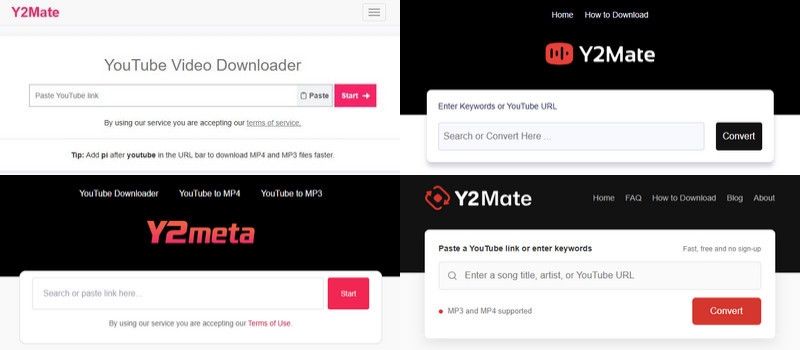
We tested Y2Mate’s actual download process rather than relying solely on the features advertised. We chose the first result that appeared when searching for “Y2Mate Downloader” on Google—the website en2.y2mate.is—whose domain name includes the name "y2mate". Our test focused on four areas:
- Download success: Whether the download could be completed successfully.
- Output quality: The actual quality of the downloaded files.
- Download experience: Whether we encountered pop-ups, redirects, or other interruptions.
How to Download YouTube to MP3/MP4 with Y2Mate?
Step 1: Copy the YouTube video URL you want to download.
Step 2: Open Y2Mate and paste the URL into the search box.
Step 3: Click “Start”, and Y2Mate will parse the video.
Step 4: Select Convert MP3 or Convert MP4 as the output format.
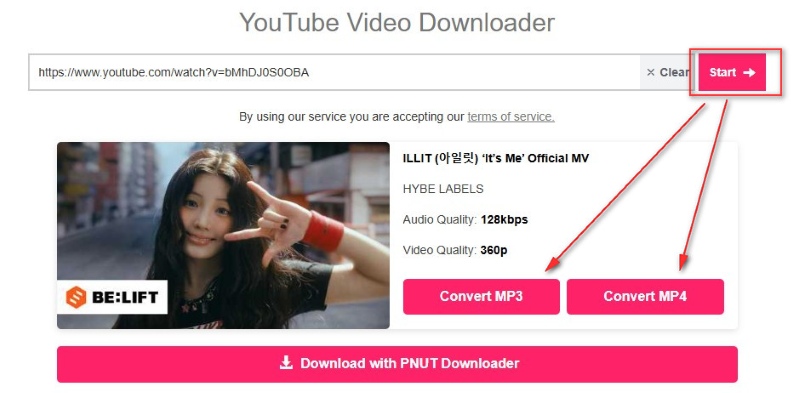
Step 5: Click Download and wait for the conversion to finish.
Step 6: Save the file to your device.
Y2Mate Test Results
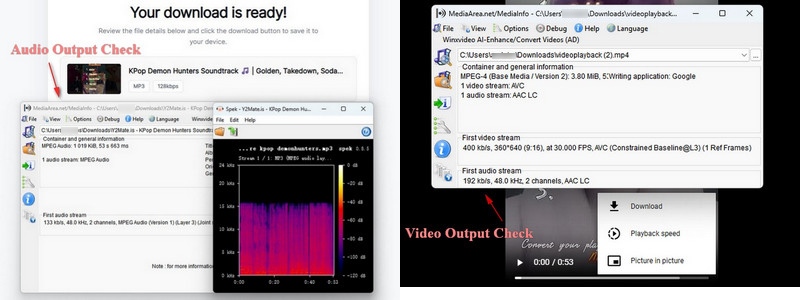
We tested Y2Mate with two short videos and two longer videos. The results were consistent across the four tests. For MP3 downloads, MediaInfo showed audio bitrates ranging from 128 to 133 kbps. For MP4 downloads, the two short videos were saved at 360 × 640 pixels, while the two longer videos were saved at 640 × 360 pixels. All four videos were 30 FPS and encoded in AVC (H.264).
| MP3/MP4 Download | MP3 Bitrate | Shorts Resolution | Long Video Resolution | Frame Rate | Ads | Redirects |
|---|---|---|---|---|---|---|
| ✅ Successful | 128–133 kbps | 360 × 640 | 640 × 360 | 30 FPS | No | Yes |
Y2Mate Has Multiple Domains
Our search also found three other websites using Y2Mate-related branding: y2meta.nu, narso.ca, and immunizeca.ca. We tested each site to see whether it could actually complete a YouTube download.
y2meta.nu
y2meta.nu did not complete either MP3 or MP4 downloads. After clicking the Convert button, the page triggered multiple redirects instead of starting an actual file download.
narso.ca and immunizeca.ca
The results from narso.ca and immunizeca.ca were the same. After clicking the “Convert” button, both sites displayed the message “Unable to connect to the converter server,” and no files were downloaded.
Verdict: These test results show that Y2Mate-related sites do not necessarily provide the same working download experience. The domain you use can make a significant difference.
Y2Mate Pros and Cons
😀 Advantages:
- Free to use.
- Successfully download YouTube content.
- Simple browser-based workflow.
- Supports common formats such as MP3 and MP4.
- Easy for occasional downloads.
☹️ Disadvantages:
- The large number of websites using the Y2Mate name can be confusing.
- Download results can vary between domains.
- Some domains redirect to other websites.
- Availability can change over time.
💡 What Our Tests Show?
Y2Mate can handle basic YouTube downloads, but the experience varies depending on the domain you use. The main site we tested completed our downloads, while other Y2Mate-related domains redirected us or failed to connect to their converter servers.
If you need batch downloads, more output formats, or a desktop workflow, the alternatives below offer different options.
4 Y2Mate Alternatives We Tested
If you're looking for alternatives to Y2Mate, you don't have to stick to online downloader sites. We tested four alternatives, including desktop downloaders and an open-source command-line tool, to see how they handle YouTube video and audio downloads in practice.
| Tool | Type | YouTube Downloads | Batch Download | Audio Output Options | Ease of Use |
|---|---|---|---|---|---|
| AudiCable Audio Recorder | Desktop | Audio | ✅ | MP3, AAC, WAV, FLAC, AIFF, ALAC | Easy |
| NoteBurner Video Downloader | Desktop | Video & Audio | ✅ | MP3, MP4, etc. | Easy |
| Any Video Converter | Desktop | Video | ✅ | MP4, WEBM | Easy |
| yt-dlp | Command Line | Video & Audio | ✅ | Extensive format options | Medium |
AudiCable YouTube to MP3 Converter
⬇️ Website: https://www.audicable.com/
If you don't like relying on browser-based download sites, AudiCable YouTube to MP3 Converter is a desktop option worth considering. There are no pop-ups or confusing download buttons to deal with. It supports YouTube videos and playlists, as well as audio from other sources. You can save files as MP3, WAV, FLAC, AAC, or AIFF. Batch downloads are supported, too. That makes it easier to process several videos at once, rather than downloading them one by one.
😀 Advantages:
- Clean, ad-free interface with a straightforward workflow.
- Supports batch downloads for multiple YouTube videos.
- High success rate in our tests, including long videos.
- Supports MP3, AAC, WAV, FLAC, AIFF, and ALAC.
- Preserves audio quality and ID3 tags such as title, artist, and album.
- Includes extra tools such as an audio editor, format converter, tag editor, CD burner, and AI splitter.
☹️ Disadvantages:
- Desktop only; there is no mobile app.
- Requires software installation before use.
📂 How to Convert YouTube Videos to MP3 with AudiCable?
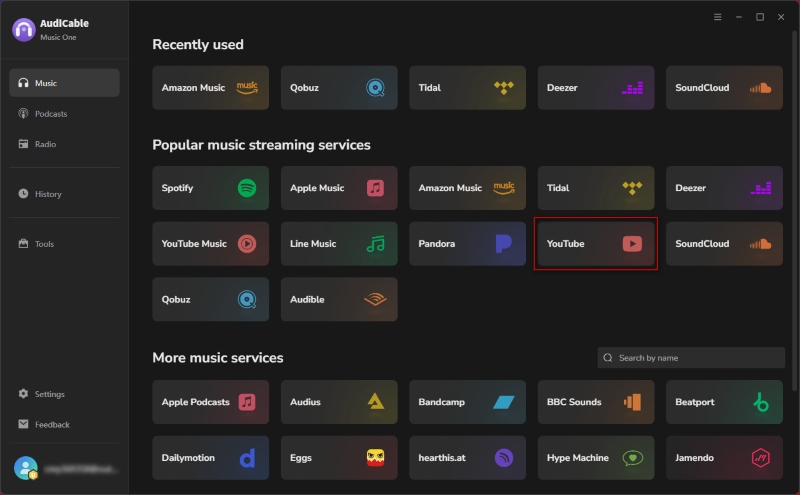
- Step 1: Launch AudiCable YouTube to MP3 Converter and select YouTube from the music interface. The YouTube web player will open automatically.
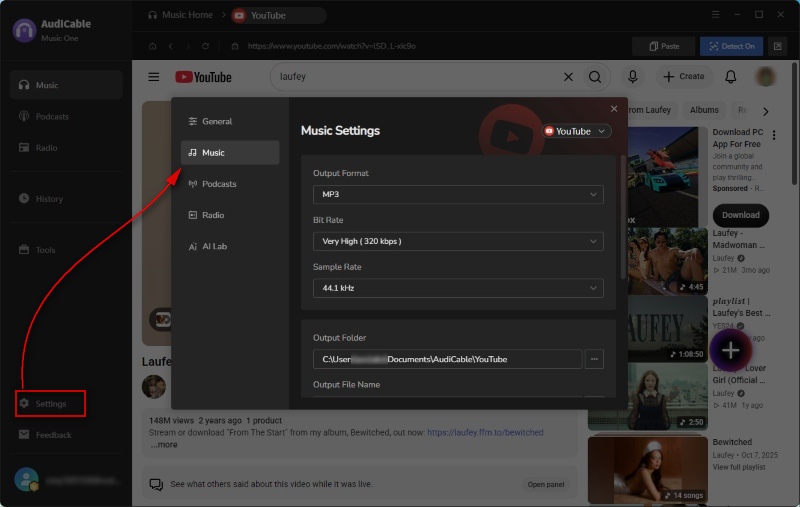
- Step 2: Open Settings and select MP3 as the output format. You can also adjust the output folder and other settings.
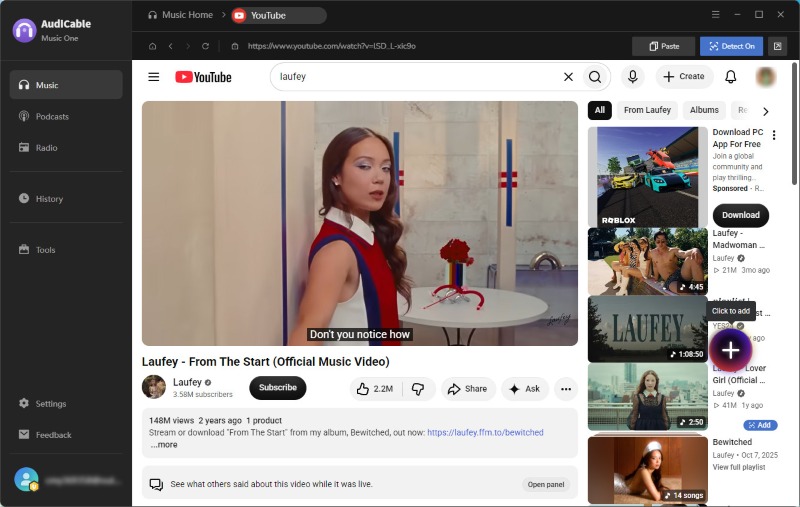
- Step 3: Find the video you want to download in the YouTube web player. A floating + button will appear in the lower-right corner. Click it to add the video to AudiCable.
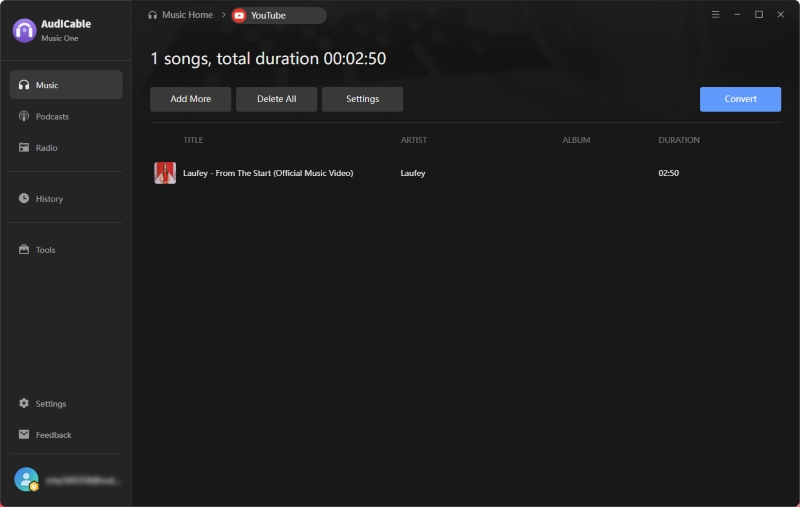
- Step 4: Click Convert to start. AudiCable will save the selected content as an MP3 file. To add more videos, click Add More and continue adding URLs.
- Step 5: Once the conversion is complete, open History from the left sidebar. Find your download and click the folder icon to open its location.
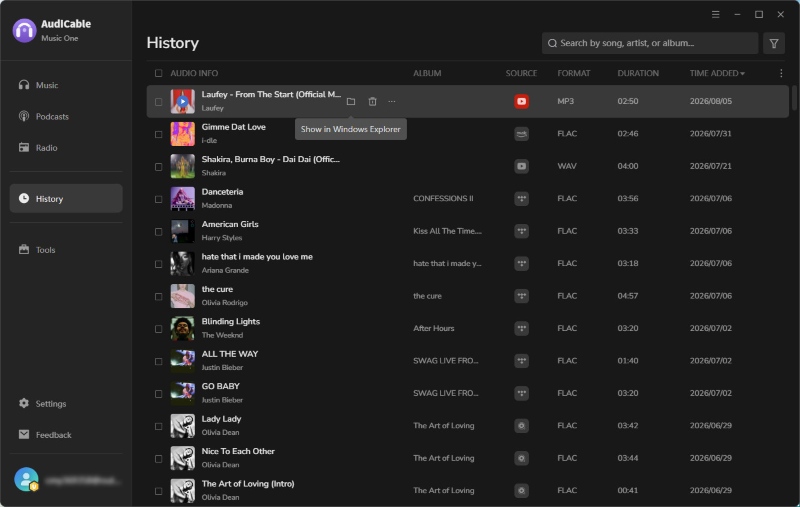
🔬 Our Test:
We tested AudiCable YouTube to MP3 Converter on a Windows 11 computer, downloaded YouTube videos, and saved them as MP3 files. The program installed smoothly and offered fast download speeds. It also supported batch downloads, while the audio quality of the downloaded files generally matched the selected settings.
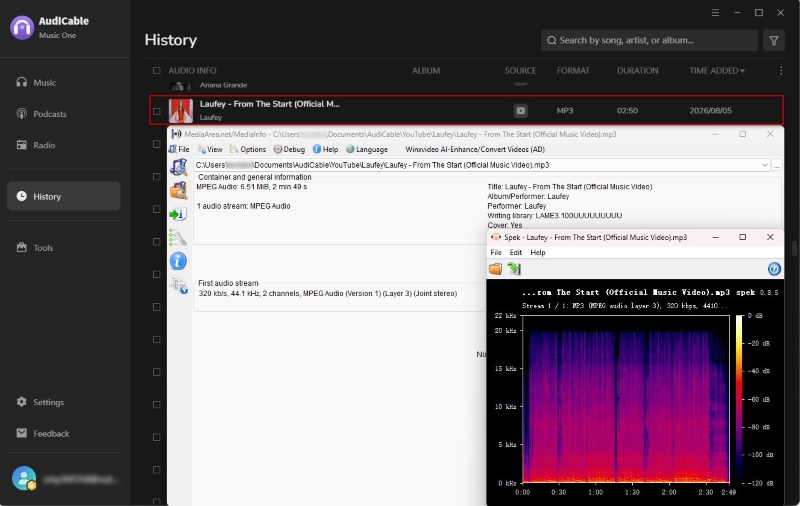
📝 Our Take:
AudiCable is suited to users who prefer a desktop downloader with batch support, multiple output formats, and additional audio tools. It offers a broader feature set than a basic browser-based downloader, although it requires desktop software rather than working directly in a browser.
👍 Read more: Is EzMP3 Safe & Reliable in 2026? Full Test & Best Alternatives
NoteBurner YouTube Video Downloader
⬇️ Website: https://www.noteburner-video.com/youtube-video-downloader-for-windows.html
NoteBurner YouTube Video Downloader focuses on YouTube, supporting 8K video downloads. You can also save audio alone and select various output types. It also offers batch downloading. The user interface is intuitive, making it simpler than command-line software like yt-dlp.
📂 How to Get YouTube MP4 and MP3 with NoteBurner YouTube Video Downloader?
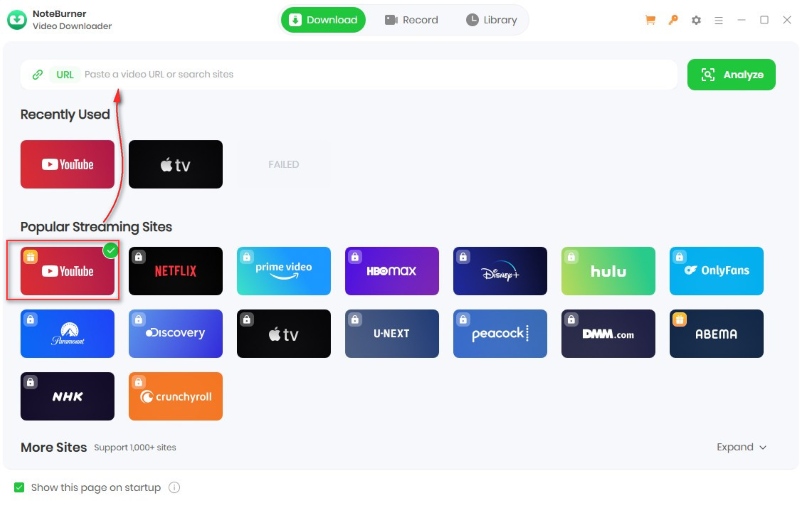
- Step 1: Launch NoteBurner Video Downloader and open the built-in YouTube browser or directly paste a video URL.
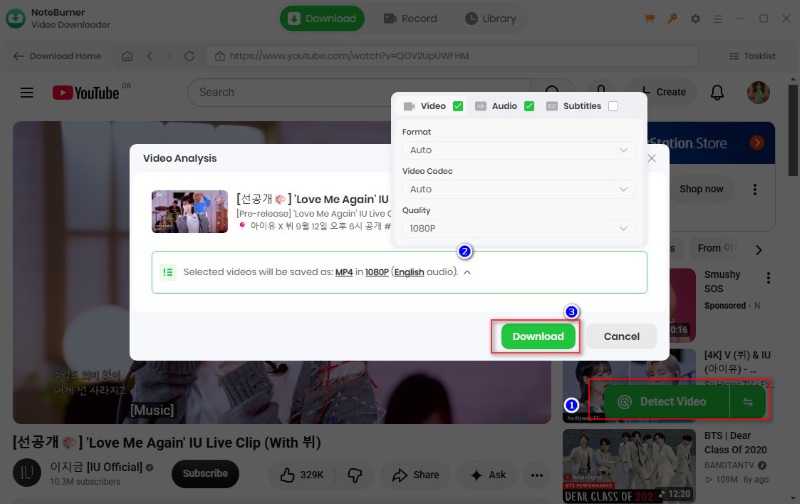
- Step 2: Tap Detect Video. Then choose the video or audio options and other parameters.
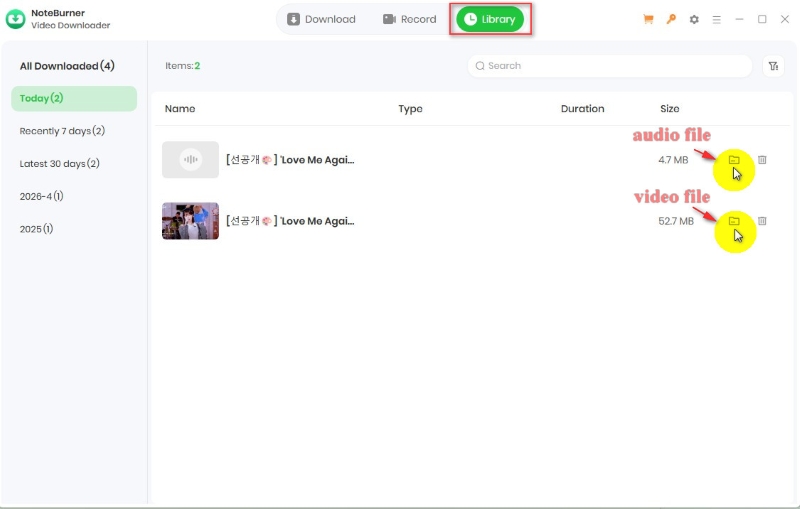
- Step 3: Click Download to start. Once finished, go to Library to find the downloaded video or audio files.
😀 Pros:
- Totally Free.
- Converts YouTube videos to MP3 or MP4.
- Simple interface that is easy for beginners to navigate.
☹️ Cons:
- Free audio and video downloads are available only on YouTube.
- Full features require a paid upgrade.
🔬 Our Test:
We tested both full-video and audio-only downloads and reviewed the available quality and format options. In our tests, NoteBurner successfully downloaded full YouTube videos without requiring a paid upgrade. It also allowed us to download audio separately, which is a useful option when you only need the soundtrack rather than the full video.
📝 Our Take:
NoteBurner offers a quick download and conversion workflow, with a simple interface that makes it easy to get started. User feedback also highlights its responsive customer support and regular software updates. Its appeal is mainly in its ease of use and convenient workflow rather than advanced customization.
Any Video Converter
⬇️ Website: https://www.any-video-converter.com/
Any Video Converter is a free desktop video downloader. It enables users to download videos from popular online platforms such as YouTube and can convert videos to formats like MP4. Unlike browser-based tools such as Y2Mate, it requires software installation.
📂 How to Extract YouTube Videos Using Any Video Converter?
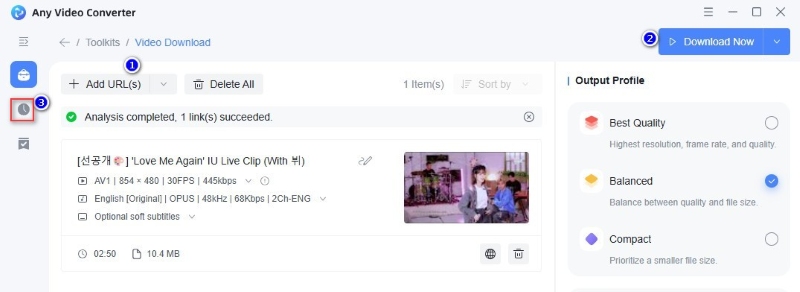
- Step 1: Install and launch Any Video Converter on your computer.
- Step 2: Tap Video Download → Add URL(s).
- Step 3: Copy the YouTube video URL, and the app will recognize the link. Click Parse Now.
- Step 4: Then click Download Now. When the Upgrade Now prompt appears, select Continue to proceed with the download.
- Step 5: The downloaded files will appear in the left column marked with a clock icon. Click the folder icon to access the downloaded MP4 files.
😀 Pros:
- Supports batch conversion.
- Includes basic video editing tools.
☹️ Cons:
- Conversion can be slower with larger files.
- Advanced features require a paid version.
🔬 Our Test:
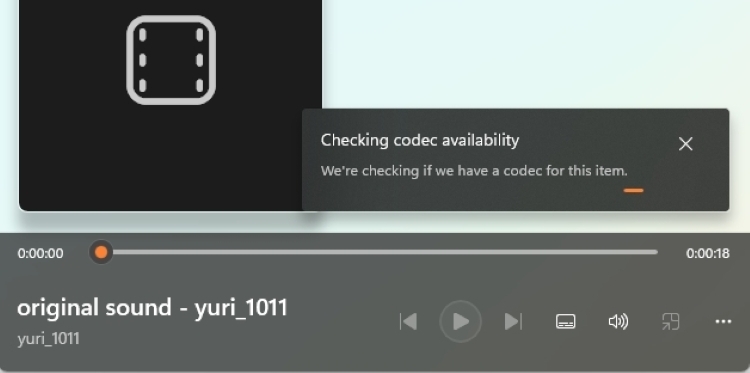
We successfully downloaded several YouTube videos as MP4 files using Video Download under Toolkits. Most downloaded files played normally, although some videos used HEVC (H.265) and prompted Windows Media Player to install an additional codec.
📝 Our Take:
Any Video Converter stands out for its broad format support and range of conversion tools. User feedback also points to some trade-offs, including slower processing with larger files and frequent upgrade prompts that some users find distracting.
yt-dlp
⬇️ Website: https://github.com/yt-dlp/yt-dlp
Yt-dlp on GitHub is a free, open-source tool for downloading audio and video via the command line. It is a derivative of “YouTube-dl” and works with many websites, including YouTube. Unlike web-based tools such as Y2Mate, yt-dlp can be run from the command prompt or terminal. This offers greater download control but requires more learning.
📂 How to Download YouTube Videos with yt-dlp?
- Step 1: Download yt-dlp.exe and place it in a folder on your computer.
- Step 2: Download and install FFmpeg, then place ffmpeg.exe and ffprobe.exe in the same folder as yt-dlp.exe.
- Step 3: Open Command Prompt and navigate to the folder containing yt-dlp.exe.
- Step 4: Enter the yt-dlp command with the YouTube video URL:
yt-dlp -f "bv*[ext=mp4]+ba[ext=m4a]/b[ext=mp4]" "YouTube_URL"
yt-dlp -x --audio-format mp3 "YouTube_URL"
😀 Pros:
- Free and open source.
- Flexible format and quality options.
- Supports playlists and batch downloads.
- Powerful command-line controls.
☹️ Cons:
- Steep learning curve.
- Requires Command Prompt or Terminal.
- Requires FFmpeg for audio extraction and some video downloads.
- Website changes can cause download errors.
- May require occasional troubleshooting.
🔬 Our Test:
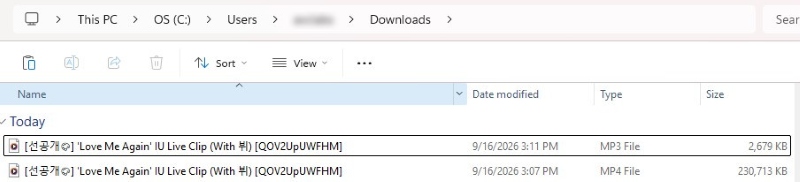
We tried yt-dlp with several YouTube videos, and the entire process went more smoothly than expected. The MP4 downloads completed successfully, and FFmpeg merged the separate video and audio streams into one file. We also successfully used yt-dlp to extract MP3 files from videos. From installing yt-dlp and FFmpeg to successfully downloading YouTube videos as local MP3 and MP4 files, the whole process took us only about an hour.
📝 Our Take:
Yt-dlp stands out for its flexibility, wide format support, playlist handling, and open-source development. It gives experienced users extensive control over their downloads, but its command-line interface can make installation and usage less approachable for beginners. Website changes can also occasionally lead to extraction errors that require an update or some troubleshooting.
FAQs About Y2Mate and Its Alternatives
💬 Q1: Is Y2Mate safe to use?
A: Y2Mate should be used with caution. The name is associated with multiple domains, and our testing showed that they do not all behave the same way. Some related sites triggered repeated redirects or failed to complete downloads. We recommend checking the exact domain before using it and avoiding suspicious pop-ups, browser notifications, or unexpected download prompts.
💬 Q2: What is the difference between Y2Mate and a desktop downloader?
A: Y2Mate works through a web browser, so there is no installation process. A desktop downloader requires installation but can provide a more controlled workflow and additional features such as batch downloads, format conversion, and audio extraction.
💬 Q3: Why is my Y2Mate download not working?
A: A Y2Mate download can fail for several reasons, including changes to the source website, an unsupported video, server problems, or issues with the specific Y2Mate domain. If the page keeps redirecting or shows a converter-server error, trying a y2mate alternative may be more practical.
Disclaimer:
- All these methods are for personal or educational use only.
- You should not use this tool to distribute music or for business.
Wrapping It Up
Y2Mate is suitable for basic YouTube downloads, but our testing shows that results vary significantly across different Y2Mate domains. If you only need to use Y2Mate occasionally, its browser-based workflow is very straightforward. For batch downloads, additional formats, or desktop workflows, the Y2Mate alternatives we tested offer other ways to download YouTube videos and audio.
If Y2Mate feels too limited, AudiCable YouTube to MP3 Converter offers a smoother and more reliable alternative.
Related Articles
- Spotify++ Review 2026: Is It Safe? Best Alternatives
- Tidabie Tidal Music Converter Review: Tested 2026
- Best YouTube Audio Rippers & MP3 Converters in 2026
- Is EzMP3 Safe & Reliable in 2026? Full Test & Best Alternatives
- MusicFab Review 2026: Real-World Test & Its Alternative
- Streamrip Review: What It Is, How to Use It & Is It Safe?

