


AudiCable Audio Recorder
Spotify Ad Blocker: How to Block Ads in 2026

By
Updated on: August 19, 2026
Category: Spotify Music Tips
Spotify is a very popular music streaming service, but the free version has a very annoying problem: ads play all the time, which disrupts the listening experience. If you are looking for ways to block Spotify ads or find methods to avoid interruptions without having to pay for Spotify Premium, then you are in the right place.
This guide takes you through why Spotify ads are showing up, the best ways to get rid of Spotify ads, and some useful Spotify ad blockers that you can make use of.

📑 Content
- Why Do You See Ads on Spotify?
- Method 1 — Upgrade to Spotify Premium (Official Solution)
- Method 2 — Download Spotify Music for Offline Listening (Most Stable Alternative)
- Method 3 — Use Traditional Spotify Ad Blockers (Less Reliable)
- Choosing the Right Method (Quick Guide)
- FAQs about Spotify Ad Blockers
Why Do You See Ads on Spotify?
Spotify offers a free plan supported by ads. While it gives access to millions of songs, it also includes:
- Audio ads between tracks
- Limited skips on mobile
- No offline listening
- Interruptions during playback
Unlike traditional web ads, Spotify ads are often delivered through encrypted streams and server-side insertion. That's why many Spotify ad blocker tools cannot fully remove ads—they can only partially block or mute them.
Next, we will introduce several effective ways to block ads on Spotify and recommend some proven Spotify ad blockers.
Method 1 — Upgrade to Spotify Premium (Official Solution)
If you’re tired of Spotify ads and just want uninterrupted music, upgrading to Spotify Premium is the easiest and most reliable way. It removes ads entirely, so you can listen without any breaks.
✔ Key Benefits:
- Fully ad-free listening across all devices.
- Offline downloads for uninterrupted playback.
- Unlimited skips and better control.
- Higher audio quality.
⚠ Limitations:
- Requires a monthly subscription.
- Not suitable for users looking for a free solution.
👉 Best for: users who want a simple, stable, and hassle-free experience.
Method 2 — Download Spotify Music for Offline Listening (Most Stable Alternative)
Most people look for ways to stop ads, yet skipping them entirely turns out to be smarter. Music saved ahead of time plays without forced breaks later on. Since advertisements load only when connected, stored tracks skip that step naturally. This lets you switch from public listening to private without issues. You can listen without interruptions, giving you more control.
Instead of trying to block Spotify ads during streaming, the most stable solution is offline listening. This is where AudiCable Spotify Downloader fits in. Rather than attempting to intercept or mute ads in real time — methods that often break after updates — it focuses on a more reliable approach: downloading music in advance for permanent offline playback.
With AudiCable, Spotify songs, albums, and playlists can be saved as local files in formats like MP3, AAC, WAV, AIFF, ALAC, or FLAC. Once downloaded, they are completely independent of streaming conditions, meaning no ads, no buffering, and no interruptions—just consistent playback across any device.
😀 Pros:
- Not affected by Spotify ad system updates.
- Download entire playlists, albums, podcasts, or audiobooks in one click.
- Convert Spotify tracks into MP3, WAV, or FLAC for permanent playback on any device.
- Preserve full metadata, including artist, album, cover art, lyrics, and track info.
- Includes format conversion, CD burner, and audio trimming for full control over your library.
- Listen anytime without ads, buffering, or streaming limitations.
☹️ Cons:
- Works through offline downloads rather than directly blocking ads in real time.
👉 Best for: users who want a free or long-term solution without relying on traditional ad blockers.
🖥️ How to Get Ad-free Music with AudiCable Spotify Downloader?
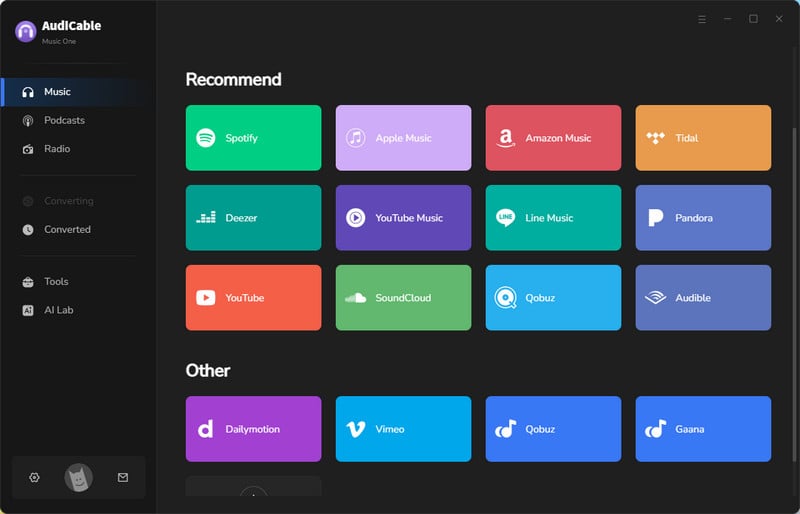
Step 1: Download and launch AudiCable, then select "Spotify".
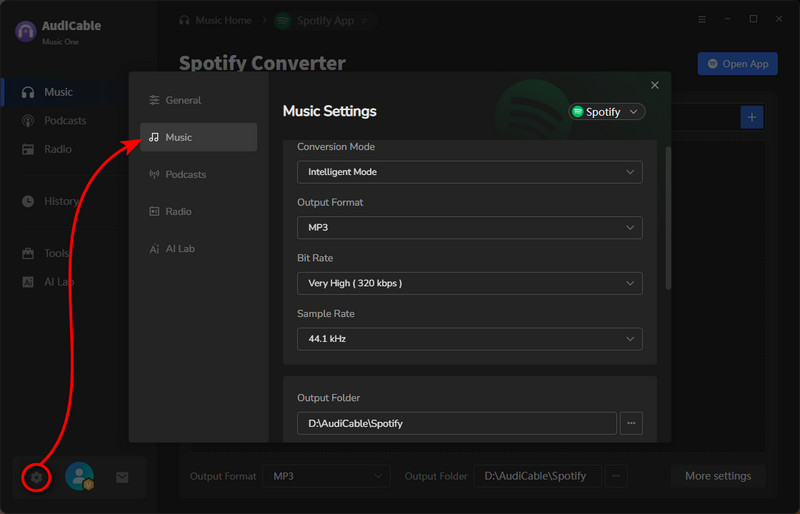
Step 2: Go to "Settings" and choose the output format, audio quality, and output path. Then open your playlist or album, select the tracks you want to convert, and add them to the conversion list.
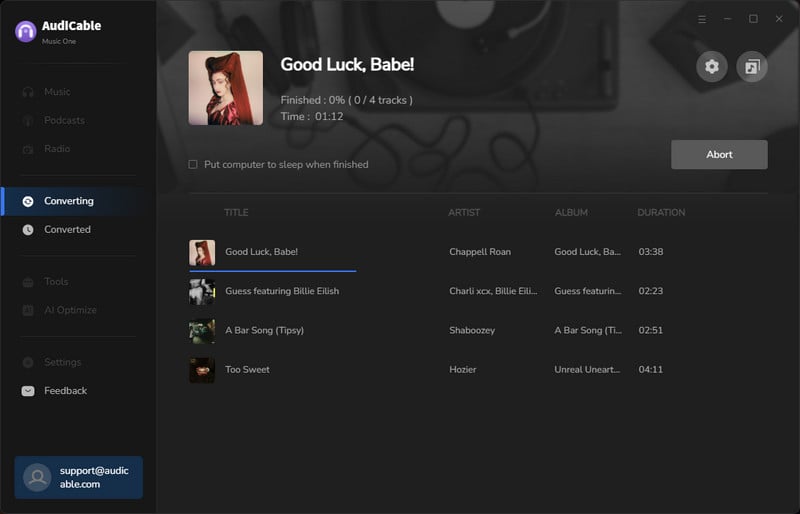
Step 3: Click the "Convert" button to start downloading the music as a local file. Once finished, go to the "History" tab and click the folder icon next to any track to access your downloaded files.
Method 3 — Use Traditional Spotify Ad Blockers (Less Reliable)
Many users search for an ad blocker for spotify, such as desktop applications or browser extensions. These tools work in different ways — some attempt to block known ad domains, others may detect when an ad is playing and mute the audio, while some rely on filtering traffic at the system level. While these approaches can sometimes help minimise interruptions, their effectiveness can vary depending on the device and the way Spotify delivers ads.
✔ What they can do:
- Reduce the number of ads.
- Mute or skip certain ad segments.
- Work better on a desktop or the web player.
⚠ Limitations:
- Not 100% reliable—Spotify frequently updates its system.
- Some tools only mute ads instead of removing them.
- May stop working after updates.
- Limited effectiveness on mobile apps.
👉 Best for: technical users who are comfortable testing tools and troubleshooting issues.
Desktop-Based Ad Blocking Tools
EZBlocker — Spotify Desktop Ad Muter
➡️ Access site: https://github.com/Xeroday/Spotify-Ad-Blocker/releases
EZBlocker is a lightweight, open-source Spotify ad blocker designed specifically for the Windows desktop version of Spotify. Instead of removing ads at the network level, it works in a simpler way: it detects when an ad starts playing and automatically mutes Spotify until the ad ends.
😀 Pros:
- Lightweight and low system usage.
- Works automatically in the background without modifying the Spotify installation.
- Safer compared to heavy system patching tools.
☹️ Cons:
- Only mutes ads instead of fully removing them.
- Windows-only support.
- May not be actively maintained or updated regularly.
- Does not block banner or UI ads.
📂 How to Use EZBlocker to Block Spotify Ads?
Step 1: Visit the official EZBlocker page or GitHub release page and download the latest version of EZBlocker.exe.
Step 2: Move the file to any folder and double-click to launch it. No complicated installation is needed.
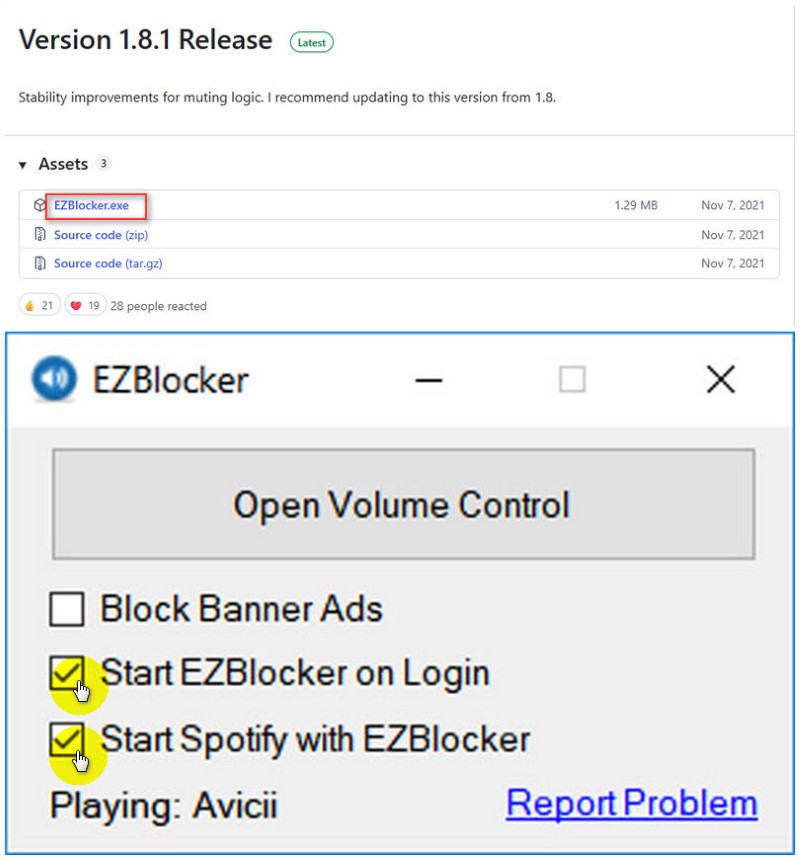
Step 3: Enable the options "Start EZBlocker on Login" and "Start Spotify with EZBlocker" so it can run automatically in the background.
Step 4: Open Spotify and start playing music. EZBlocker will automatically detect ads and mute them until playback returns to normal.
SpotX — Spotify Desktop Ad Blocker
➡️ Access site: https://github.com/SpotX-Official/SpotX
SpotX is an open-source tool designed to patch the Spotify desktop application (Windows, with community-supported Mac/Linux versions). Instead of acting like a browser ad blocker, it modifies the Spotify client itself to change how it behaves—especially around ads and UI elements.
😀 Pros:
- Most complete ad removal solution.
- No playback freezing issues.
- Deep customization options.
☹️ Cons:
- Requires manual setup and maintenance.
- May break after Spotify updates.
- Potential account or security risks.
📂 How Does SpotX Block Ads on Spotify?
Step 1: Visit the SpotX GitHub page and scroll to the “Fast Install / Update” section.
Step 2: Expand “Full Installation” and download the “Install_Auto.bat” script.
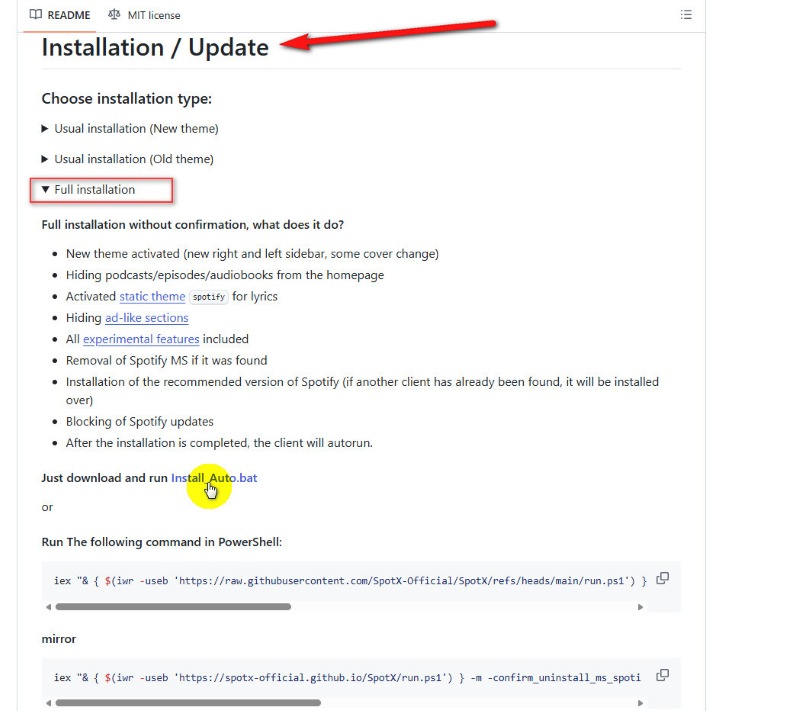
Step 3: Double-click the downloaded file and allow any permissions needed to run the script.
Step 4: Wait for the installation to finish—Spotify will launch automatically with ads removed.
Spicetify — Spotify Desktop Customization Tool
➡️ Access site: https://spicetify.app/
Spicetify changes the Spotify desktop app's visual elements instead of blocking Spotify ads. It modifies the interface to make ads like sponsored posts and banners less noticeable or hidden, particularly on the home and browsing pages. Though themes and extensions can improve Spotify's appearance, Spicetify doesn't affect the ad system itself.
😀 Pros:
- Allows UI customization to avoid ad-heavy sections.
- Some extensions help filter out promotional elements.
- Reduces sponsored content and promotional banners in the Spotify interface.
☹️ Cons:
- No network-level ad blocking.
- The effect depends on available extensions and themes.
- May lose effectiveness after Spotify updates.
📂 How to Set Up Spicetify with Extensions?
Step 1: Visit the official Spicetify website and follow the installation guide to set it up on your computer.
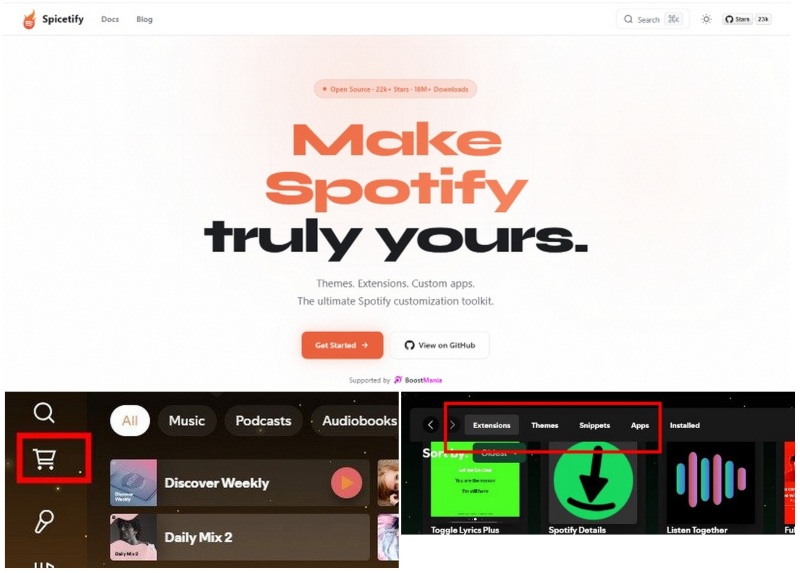
Step 2: Open the Spotify desktop app. If installation is successful, you should see a Marketplace icon appear in the sidebar.
Step 3: Open the Marketplace, go to Extensions, install an available ad-related or content-filtering extension (if supported), then restart Spotify to apply the changes. This can help reduce ads and promotional elements depending on your setup.
Browser-Based Extensions
Adblock for Spotify — Browser-Based Spotify Ad Blocker
➡️ Access site: https://chromewebstore.google.com/
Adblock for Spotify is a lightweight browser extension designed specifically for the Spotify Web Player rather than the desktop app. It identifies and silences or skips audio ads during online streaming. Some versions also block pop-up and sidebar ads. Adblock activates automatically upon loading the Spotify web version, requiring no manual setup. This offers a simple solution for users who wish to keep the Spotify desktop app unmodified.
😀 Pros:
- Lightweight and beginner-friendly.
- Works automatically once enabled in the browser.
- Safer than deep patching tools like SpotX.
☹️ Cons:
- May occasionally break playback.
- Effectiveness may change after Spotify updates.
⚙️ How to Use Adblock for Spotify to Block Spotify Ads?
Step 1: Open the Chrome Web Store, search for “Adblock for Spotify”, and install the extension.
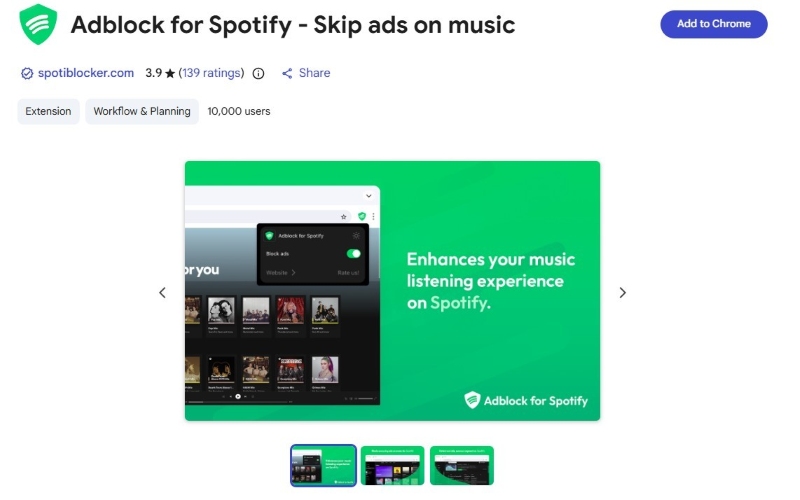
Step 2: Open the Spotify web player and log in to your account.
Step 3: Start playing music—the extension will run in the background and help skip or mute ads during playback.
uBlock Origin — Browser-Based Spotify Ad Blocker
➡️ Access site: https://github.com/gorhill/uBlock/releases/tag/1.70.0
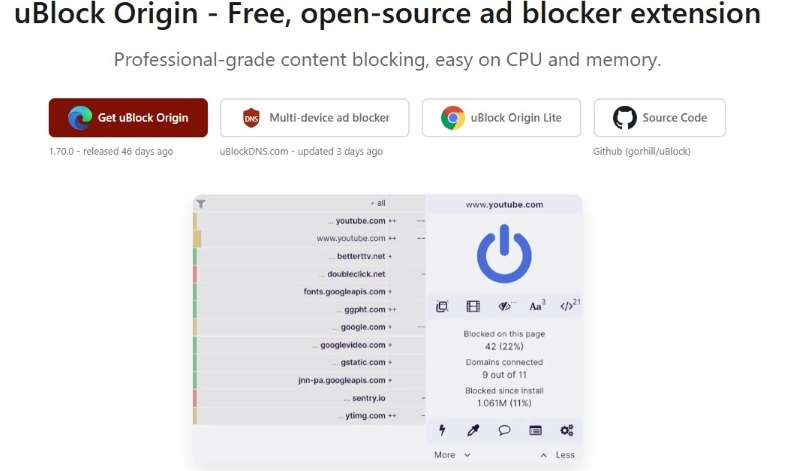
uBlock Origin is a free, open-source browser extension that blocks ads, trackers, and other unwanted content while you browse. It works by stopping ad requests before they load, which helps pages load faster and improves privacy by reducing third-party tracking. Unlike many basic ad blockers, it is lightweight, efficient, and highly customisable, allowing users to choose which filters they want to enable.
😀 Pros:
- Blocks ads and pop-ups at the network level before they load.
- Improves page loading speed and overall browsing performance.
- Lightweight and uses very low system resources.
- Highly customizable with filter lists and advanced rules.
☹️ Cons:
- Requires manual setup for advanced filtering features.
- Needs periodic filter list updates for best performance.
- Can be complex for non-technical users.
⚙️ How to Use uBlock Origin for Spotify Ad Blocking?
Step 1: Install uBlock Origin from your browser’s extension store and pin it for easy access.
Step 2: Open the Spotify web player and log in to your account.
Step 3: Make sure uBlock Origin is enabled, then start playing music—ads are usually blocked before they load.
Step 4: If ads still appear or playback feels off, simply refresh the page or toggle the extension.
Blockify — Browser-Based Spotify Ad Blocker Extension
➡️ Access site: https://chromewebstore.google.com/
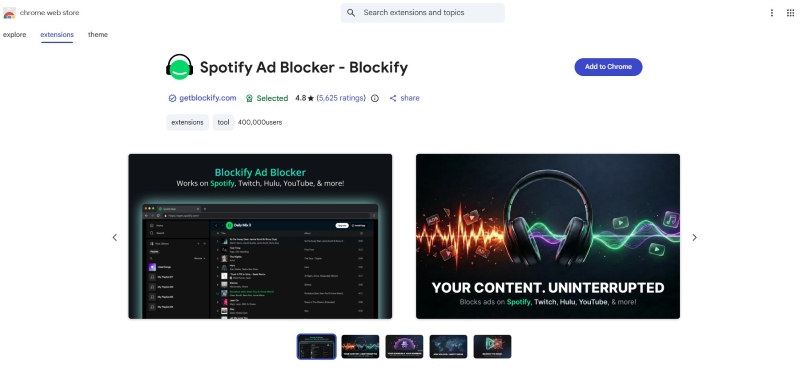
Blockify is a browser-based ad blocker extension designed to remove ads and tracking elements while you browse and stream content online. It works by filtering ad requests before they load, helping users experience smoother and more uninterrupted playback on supported platforms such as Spotify Web Player, YouTube, Twitch, and others.
😀 Pros:
- Blocks ads and trackers before they load.
- Makes pages load faster.
- Improves privacy by reducing tracking.
- Lightweight and efficient.
☹️ Cons:
- Only works in the browser.
- Can occasionally break website elements.
- Needs regular updates to stay effective.
⚙️ How to Use Blockify on Spotify?
Step 1: Go to the Chrome Web Store or your browser’s extension store, search for Blockify, and install it.
Step 2: Open the Spotify web player and log in to your account.
Step 3: Start playing music—Blockify will run in the background and help skip or mute ads during playback.
📊 Spotify Ad Blocker Comparison Table
| Method / Tool | Type | Stability | Ad Blocking Result | Setup | Reliability | Best For | Recommendation |
|---|---|---|---|---|---|---|---|
| AudiCable Spotify Downloader | Desktop | ✔ Independent from Spotify updates | ✔ Permanent offline ad-free playback | Easy | Very High | Most stable long-term ad-free solution | ⭐⭐⭐⭐⭐ |
| EZBlocker | Desktop | △ Stable but limited functionality | ✖ Only mutes ads | Easy | Low–Medium | Basic Windows users | ⭐⭐⭐ |
| SpotX | Desktop | △ May break after updates | ✔ Removes most ads | Medium | Medium–High | Advanced desktop users | ⭐⭐⭐⭐ |
| Spicetify | Desktop | ✖ Not designed for ad blocking | ✖ Does not remove ads directly | Medium | Low | UI customization users | ⭐⭐⭐ |
| Adblock for Spotify | Browser | △ Inconsistent | △ Partial blocking | Easy | Medium | Spotify Web users | ⭐⭐⭐ |
| uBlock Origin | Browser | △ Depends on filters | △ Browser-only blocking | Easy | Medium | General browser users | ⭐⭐⭐⭐ |
| Blockify | Browser | ✖ Limited reliability | △ Partial mute/block | Easy | Low–Medium | Light web users | ⭐⭐⭐ |
🔑 Key Takeaway
Among all Spotify ad-blocking solutions, AudiCable Spotify Downloader stands out because it does not rely on Spotify’s streaming or ad system.
Instead of trying to block ads during playback (which often fails after updates), it enables offline music playback, ensuring the following:
✔ No ads
✔ No dependency on Spotify updates
✔ No buffering or interruptions
✔ Consistent long-term listening experience
This makes it one of the most stable and reliable alternatives for users seeking a permanent ad-free solution.
FAQs about Spotify Ad Blocker
💬 Q1: Are Spotify ad blockers safe to use?
Some tools are safe, but others may require system permissions or unofficial downloads. Always use trusted sources and be cautious with third-party apps.
💬 Q2: Why do Spotify ad blockers stop working after a while?
Spotify frequently updates its ad delivery system. Many ad blockers rely on patterns or known domains, which can quickly become outdated.
💬 Q3: Is there a 100% working Spotify ad blocker?
No, there is no universal solution that works on all devices. Spotify Premium is the only official 100% ad-free solution, while offline downloading offers the most stable long-term alternative.
💬 Q4: What is the difference between blocking and muting Spotify ads?
Blocking removes ads entirely, while muting only silences them without stopping playback. Some tools only offer muting, not full ad removal.
Wrapping It Up
There’s no perfect Spotify ad blocker that works for everyone. Some tools can help reduce ads, but they’re often inconsistent and may stop working after updates. Spotify Premium remains the most reliable way to get a fully ad-free experience.
If you don’t want to subscribe, offline listening is usually the more stable option. It takes a bit of setup, but once your music is downloaded, you can listen without interruptions.
In the end, it comes down to what fits your listening habits best—convenience, flexibility, or full control.
Get AudiCable Spotify Downloader for Stable Ad-Free Listening Now!!

