


AudiCable Audio Recorder
How to Make A Spotify Blend Playlist in 2026

By
Updated on: August 19, 2026
Category: Spotify Music Tips
Want to know how similar your music tastes are to your friends? Spotify Blend makes it easy to discover songs you both love, then generate a Spotify Blend playlist, allowing you to effortlessly find songs you both enjoy. If you're looking to learn how to do Spotify Blend or ensure it's saved permanently, you've come to the right place. This complete guide walks you through everything—from starting your first collaborative playlist to keeping it in your library for good.
What Is Spotify Blend & How It Works
This section helps answer what Spotify Blend is for new users.
Spotify Blend was launched by Spotify in 2021 and upgraded in March 2022. It is a social music feature that creates a personalized, shared playlist by merging your music taste with someone else's — whether that's a friend, family member, partner, or even an artist.
How Does Spotify Blend Work?
Spotify Blend analyzes each member's listening history—including frequently played tracks and saved songs—to create a shared playlist. It combines collaborative filtering and content-based algorithms to dynamically weight everyone's music taste, generating a mix that reflects the group.
You'll see a taste-match percentage that shows how aligned your preferences are, along with a unique cover for each Blend. The playlist updates regularly as listening habits change, making it both a personalized music experience and a meaningful soundtrack to your connections.
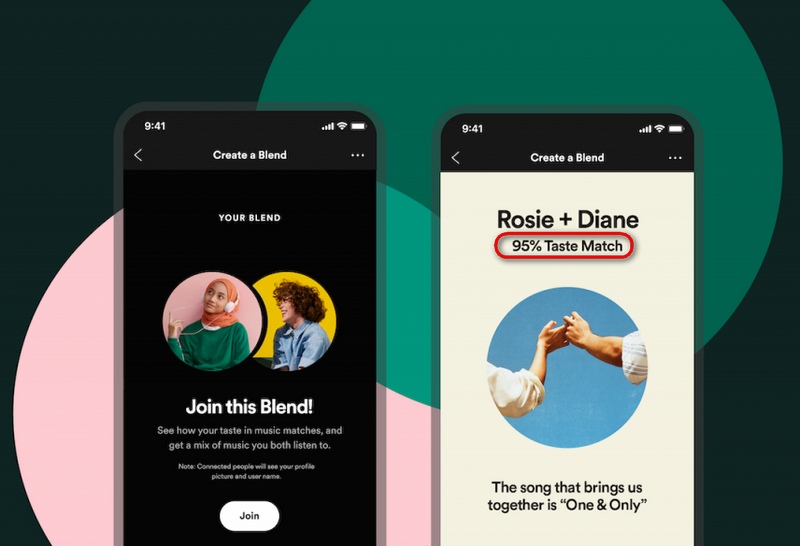
How to Create a Spotify Blend: Step-by-Step Tutorial
You can create your Blend in minutes. Follow these steps to learn how to make a Blend on Spotify smoothly.
Step 1: Find & Start a New Blend
1. Open the Spotify app on mobile or desktop.
2. Search "Blend".
3. Tap "Create a Blend".
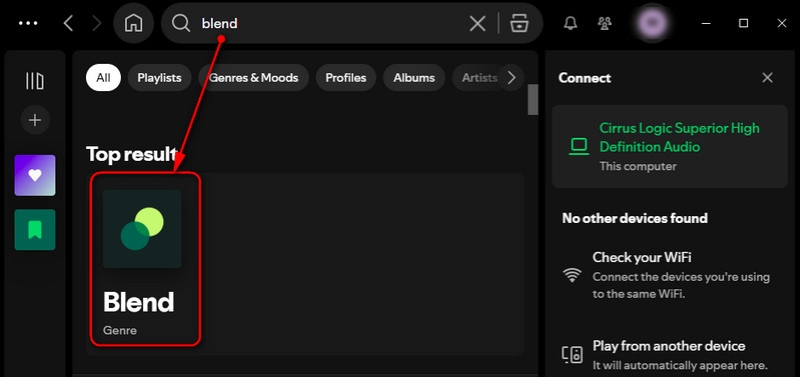
Congratulations—you've started your Blend! Next, it's time to invite others.
Step 2: Invite Friends & Decode Your Blend Cover
1. Tap "Invite" to generate a Spotify Blend link.
2. Send this link to a friend, partner, or group chat.
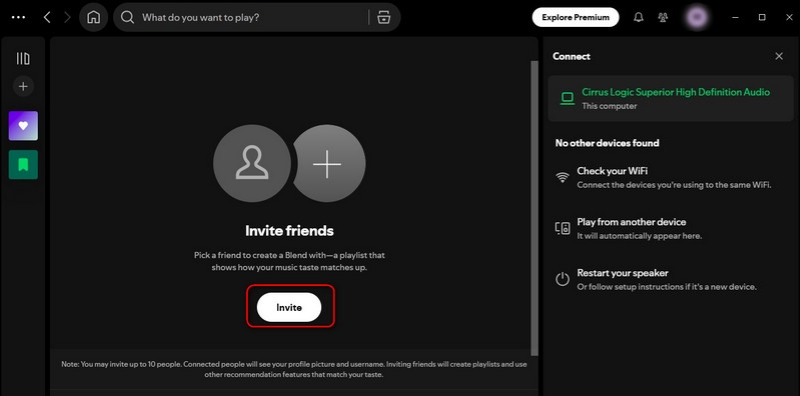
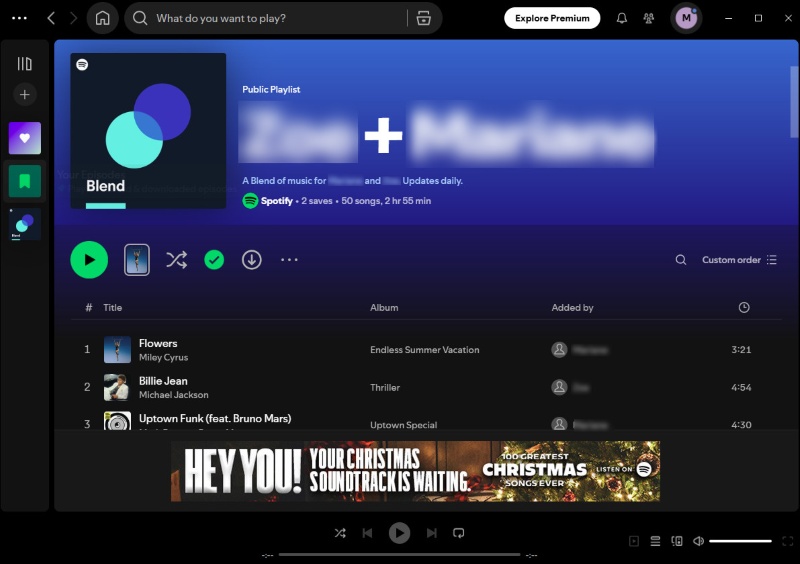
Once your friend joins, Spotify instantly crafts your shared playlist — complete with a custom cover.
Step 3: Enjoy & Share Your Collaborative Playlist
Now you can enjoy:
- A curated playlist based on everyone's favorites.
- Daily updates with new songs.
- Fun track-by-track labels showing who contributed what.
💡Tips: You can choose to create an exclusive Blend playlist with a friend or share an invitation link with multiple friends (up to 10 people). Moreover, the highlight of Spotify Blend is that you can create a Spotify Blend with an artist, which will be covered in our FAQ session.
Mastering Your Blend: How to Update, Share Anywhere, or Delete
Ready to get more out of your shared playlist? Here's everything you can do with it.
How to Update Your Blend for Fresh Tunes?
Spotify Blend will automatically update in the following two situations: ➊ When more people join the Blend, the Spotify Blend will automatically update based on everyone's listening taste. ➋ When Blend members listen to new tracks, the entire Spotify Blend playlist will also update to match each person's evolving taste.
To manually refresh your Spotify Blend playlist:
📱 On mobile: Open the Blend playlist and pull down the screen to force a refresh.
💻 On desktop: Exit and reopen Spotify to load the most up-to-date version of the playlist.
How to Share Your Blend on Instagram, Snapchat, etc.
Spotify makes sharing easy:
1. Open your Blend playlist in the Spotify app.
2. Tap the three-dot menu (⋮) in the top-right corner.
3. Select "Share".
4. Choose your preferred app to post directly or send it to friends.
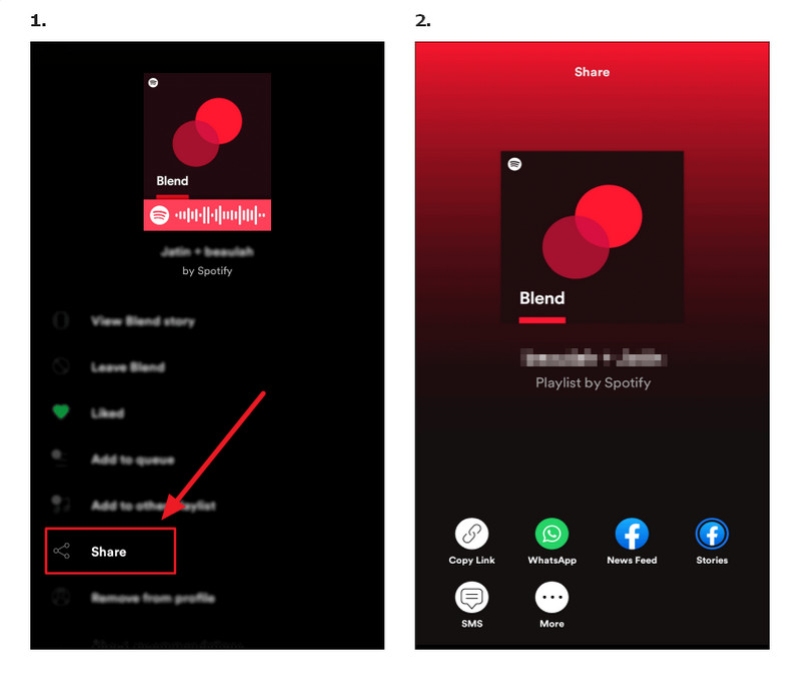
💡Tips: On Instagram Stories, Spotify will generate a custom, interactive sticker with the playlist cover for your story.
Can You Have Multiple Blends? How to Switch or Delete
Yes, you can create multiple Blends with different people. Spotify does not limit how many you can make.
To switch blends:
1. Go to "Search" at the bottom.
2. Type "Blend" in the search bar.
3. Scroll down to the "Made For You" section.
4. Tap "Your Blends" — here you'll see all your Blend playlists listed together.
5. Simply tap any Blend to open and listen.
To delete a Blend:
1. Open the playlist.
2. Tap the three-dot menu.
3. Choose "Leave Blend" or Remove from your Library.
How to Save Your Blend Playlist Forever?
Blend playlists are more than just music—they're emotional snapshots of friendship, relationships, and shared moments. But here's the catch: Blends update automatically. You've probably wondered, "Will I lose these songs if they disappear from the playlist?" Don't worry, you don't have to say goodbye to those meaningful tracks.
To permanently save your Blend playlists, the easiest way is to use a music recorder or playlist backup tool. We recommend AudiCable Spotify Music Recorder. It is a dedicated tool for Spotify users who want to keep their favorite music close—especially their personal and emotional Spotify Blend playlists. It lets you batch download entire playlists at up to 10x speed, converting tracks into multiple formats like MP3, FLAC, and WAV while preserving full ID3 tags and lossless audio quality. Once downloaded, your Spotify music becomes truly yours—stored locally, ready to play anytime, anywhere, on any compatible device, even without an internet connection or a Spotify subscription.
Best AudiCable Spotify Blend Playlist Recorder( Mac / Win )
- Imports songs from Spotify, Apple Music, Amazon Music, Tidal, Line Music, Deezer, YouTube Music, Pandora, SoundCloud, and more—perfect for creating your own "Blend-style" mixed collections.
- Downloads all songs from any Blend playlist in MP3, AAC, WAV, FLAC, AIFF, or ALAC formats at high speed.
- Preserves original audio quality and supports Spotify Lossless downloading.
- Includes a format converter, a tag editor, a vocal remover AI, a CD burner and etc.
- Downloads tracks without subscription limitations and transfer them to any device for permanent offline playback.
💻 Steps to Convert Spotify Songs to MP3 without Premium:
Step 1 Select the Spotify Platform and App Mode
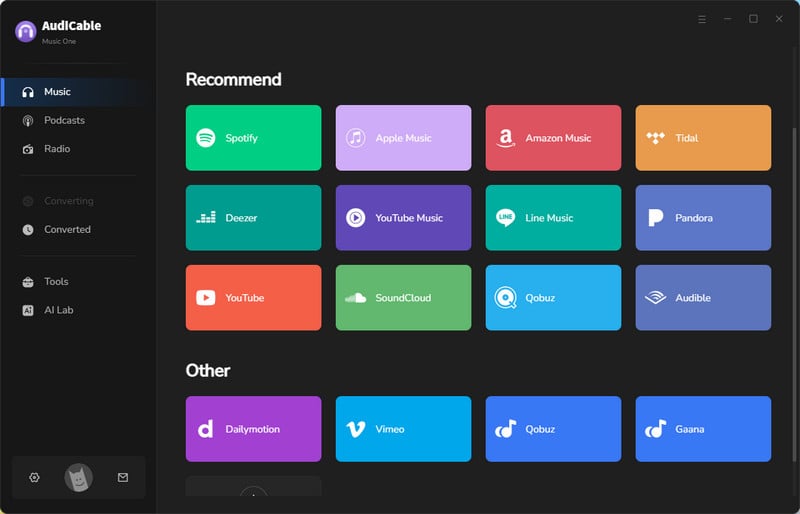
Download and launch AudiCable Spotify Music Recorder on your computer. On the Music tab, you'll see various popular streaming services. Select "Spotify" as your conversion source. Here, you can choose to load your Blend playlist using the Spotify app.
Step 2 Choose Output Format as MP3
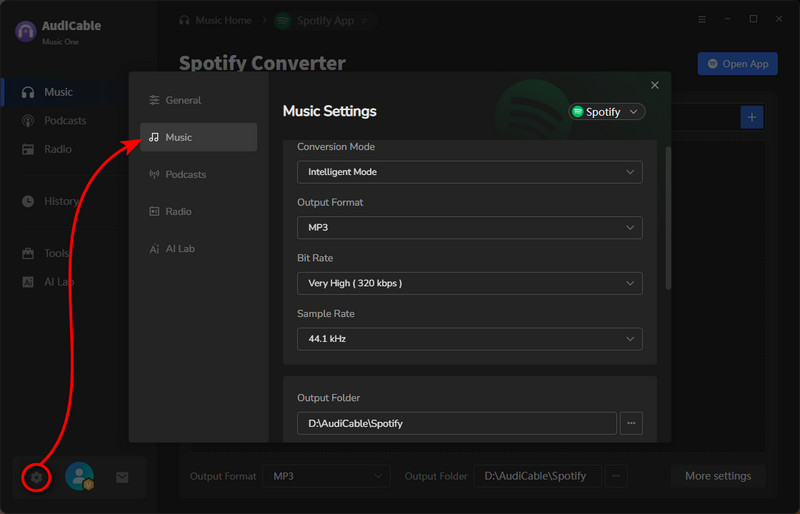
Click "Settings" in the bottom left corner, then select "MP3" as the output format. You can also choose other output formats as needed. To better organize your saved Spotify Blend tracks, create a new local folder for the output files.
Step 3 Add Spotify Blend Music to AudiCable
Simply drag and drop the playlists from the app to AudiCable. Alternatively, copy and paste the Blend playlist link into AudiCable's URL parsing box. Then check the songs you want to convert, and click "Add".
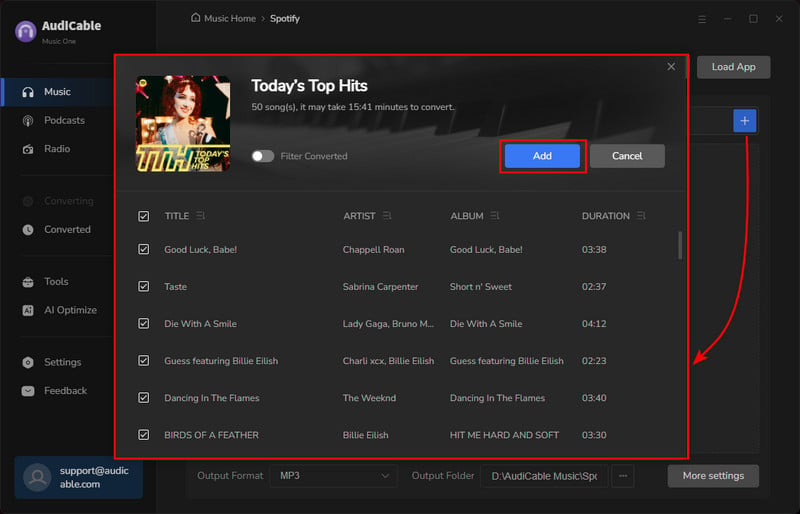
Note: If you choose to download via Web Download Mode, just open the Blend playlist on Spotify Web Player and tap "Click to add" to parse the music.
Step 4 Record Spotify Blend Playlist as MP3
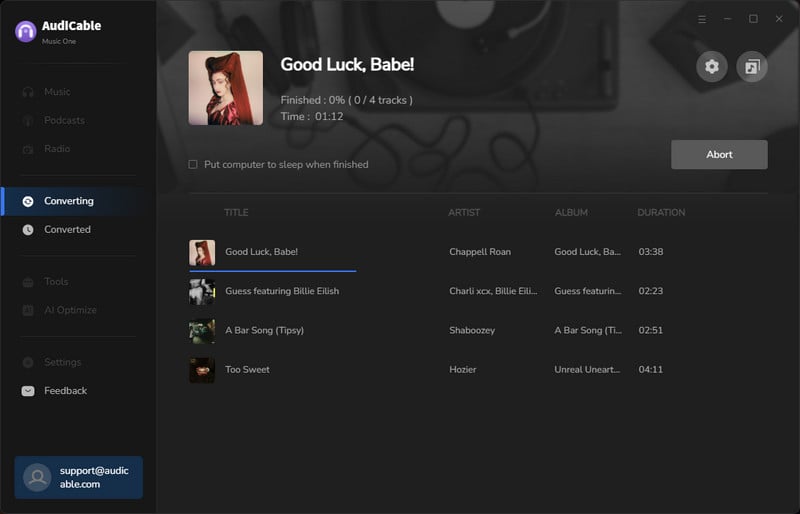
Click the "Convert" button, and AudiCable will begin converting the selected Blend tracks into local MP3 files. The process usually completes quickly. If you need to stop the conversion, press "Abort".
Step 5 Get Spotify MP3 Songs on the Local Folder
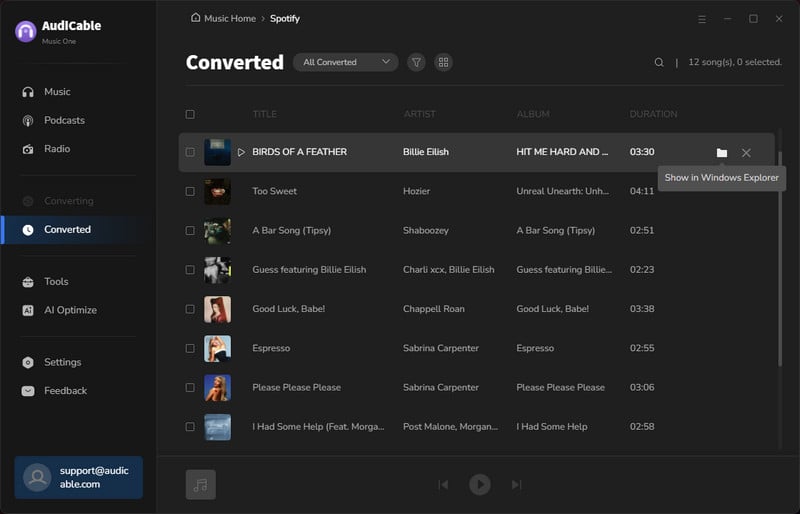
Once conversion is complete, click "History" on the left sidebar. Then tap the Folder icon next to any song. A pop-up window will show the folder containing all your downloaded Spotify Blend MP3 tracks.
👑 Pro Tips: You can set songs from the converted Spotify Blend playlist as your phone ringtone, download them to a USB port for offline listening, or import them to your local device to listen to while working out at the gym.
Part 5: FAQs
💬 Q1: How to create a Spotify Blend with an artist?
Creating a Spotify Blend with an artist is simple—but it only works when Spotify officially offers a Blend for that artist. Not every artist has one, so the option appears only during special releases or promotional events.
Here's how to do it:
- 1. Open the Spotify app.
- 2. Search for the artist.
- 3. If Spotify currently supports an artist Blend, you'll see: "Create a Blend" or "Blend With [Artist Name]".
- 4. Tap it, and Spotify will generate a Blend combining your listening taste, the artist's musical style, and curated recommendations.
💬 Q2: Do I need Spotify Premium to make a Spotify Blend?
No, both Free and Premium users can use Blend.
💬 Q3: Can I save my Blend playlist permanently?
Yes. Use tools like AudiCable Music One to record and export your Blend for long-term preservation.
💬 Q4: Why does my Blend sometimes not show the Spotify blend taste match percentage?
In some cases, the taste-match score may temporarily disappear due to app updates or delayed data syncing. Usually, reopening the app or waiting a short while will make the percentage reappear.
💬 Q5: Does creating a Spotify Blend affect my personal recommendations like Discover Weekly or Daily Mix?
No. Spotify Blend only generates a shared playlist and does not influence your individual recommendation algorithm. Your Discover Weekly and other mixes will continue to reflect your own listening habits, not your friends' tastes.
💬 Q6: When does Spotify Blend update?
Spotify Blend updates automatically once a day based on the most recent listening activity of everyone in the Blend.
💬 Q7: If I leave a blend on Spotify will they know?
Spotify does not notify anyone when you leave a Blend. Only if your friends observe closely might they indirectly notice your departure, as your name disappears from contributors and playlist covers, or your taste match percentage might change.
Disclaimer:
- All these methods are for personal or educational use only.
- You should not use this tool to distribute music or for business.
The End
Ready to explore your musical connections? With Spotify Blend, creating and sharing playlists with friends is effortless. Now that you know how to set up, manage, and save your Blends, it's time to dive into discovering your shared music taste. Create your own playlists instantly with AudiCable Spotify Blend Playlist Recorder, save every playlist, and permanently preserve your favorites. Start blending, sharing, and enjoying your own personalized music now!
Get the best Spotify Blend Playlist Downloader now!!
Note: You can only convert the first 1 minute of each audio with the free trial version. Please buy the full version to unlock its limits.

